
Writing a post on LinkedIn feels easy until you come back later and can’t find it. You start drafting, get interrupted, close the app or browser, and suddenly your LinkedIn drafts vanish, with no clear drafts section or even a warning.
This problem is common because LinkedIn drafts behave differently across desktop and mobile apps, rely heavily on session continuity, and don’t sync as most people expect. A quick app switch or device change is enough to lose work.
This guide will remove that frustration. You’ll learn exactly how drafts are saved, how to find draft posts on LinkedIn, why they disappear, and what to do to avoid losing content again that too clearly, reliably, and step by step.
How to Save Draft Posts on LinkedIn?
Before you try to find a missing draft, it’s important to understand how LinkedIn actually saves drafts in the first place. Drafts aren’t saved manually with a button. Instead, LinkedIn relies on specific exit behaviors and auto-save cues that many users miss.
In this section, we’ll walk through how LinkedIn saves draft posts, first on desktop and then on mobile, so you know exactly what actions keep your content safe and which ones put it at risk.
We’ll start with:
How to Save Draft Posts on LinkedIn (Desktop)?
Follow these steps to make sure your LinkedIn post is actually saved as a draft and not lost accidentally:
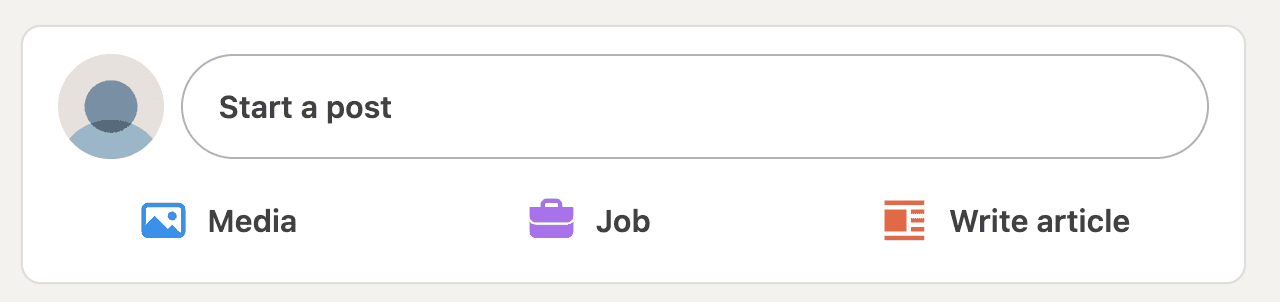
Step 1: Click “Start a post”
From your LinkedIn homepage, click Start a post at the top of the feed. This opens the post composer.
Step 2: Write your post
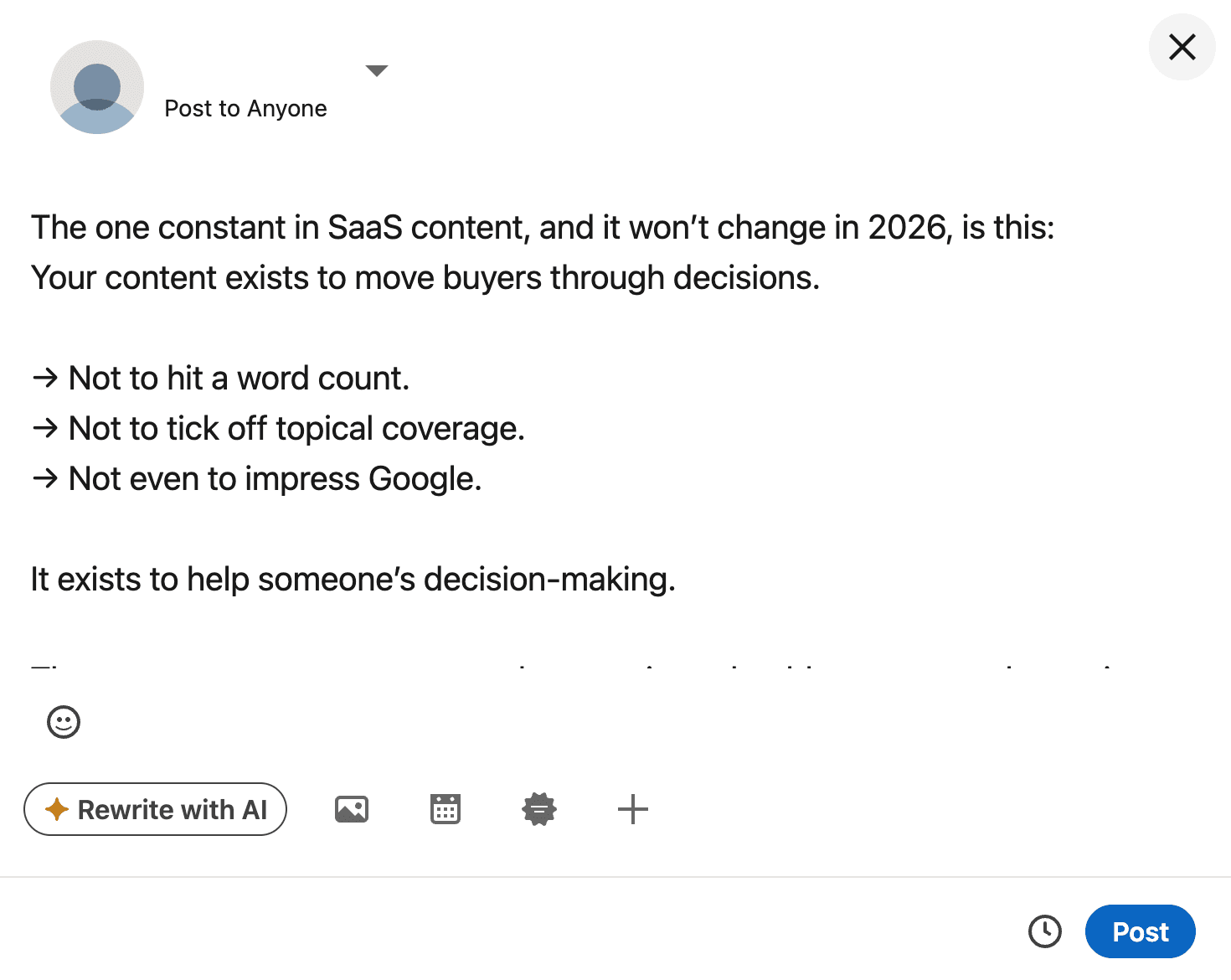
Add your text, links, or formatting in the composer. At this stage, nothing is saved yet.
Step 3: Exit the composer correctly
Click the X (Cancel) icon in the top-right corner of the composer.
Do not close the browser tab or refresh the page.
Step 4: Confirm “Save as draft”
A pop-up will appear asking, “Save this post as a draft?”
Click Save as draft to confirm.
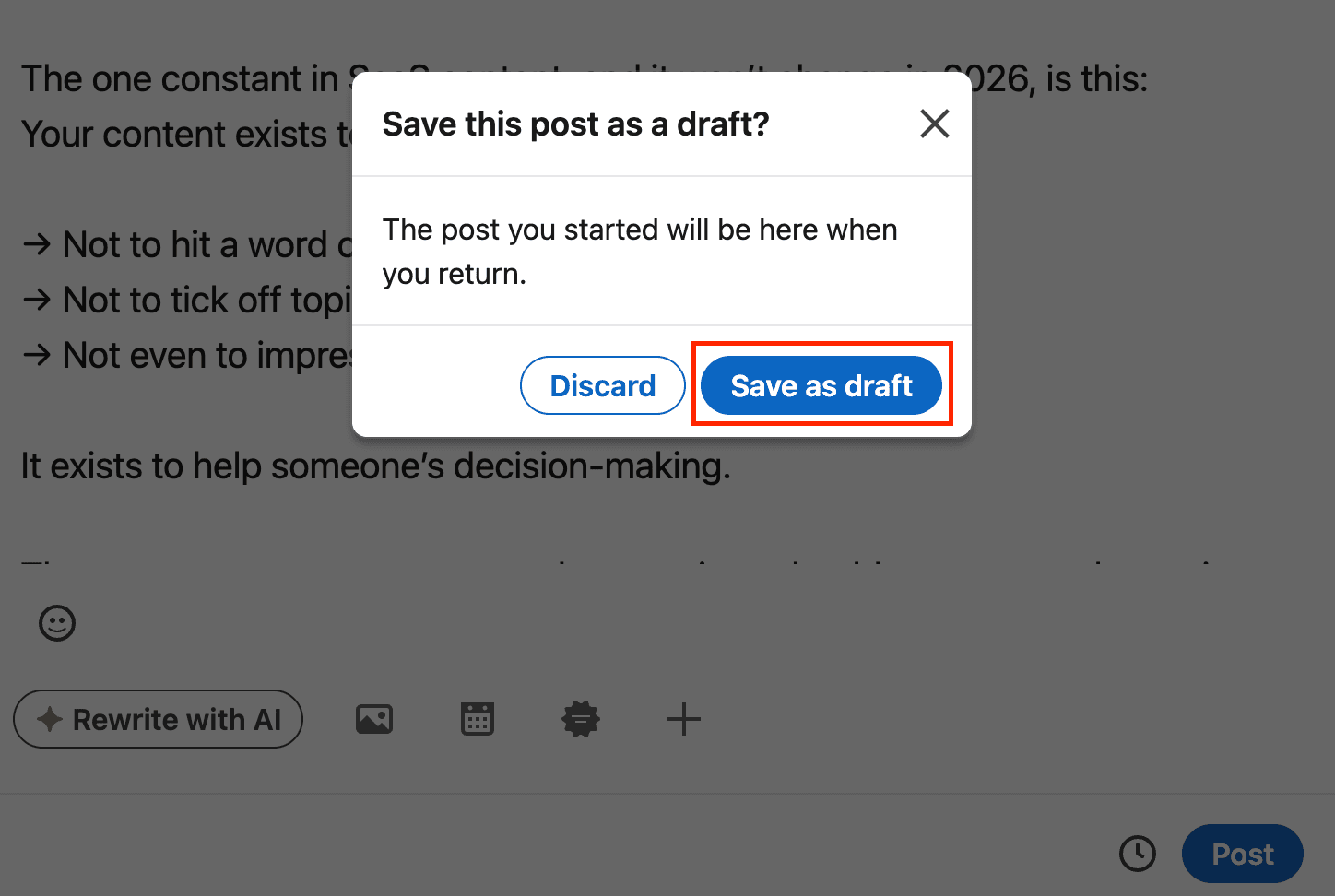
What happens after saving: LinkedIn shows a short confirmation message, and your draft is stored locally for later editing.
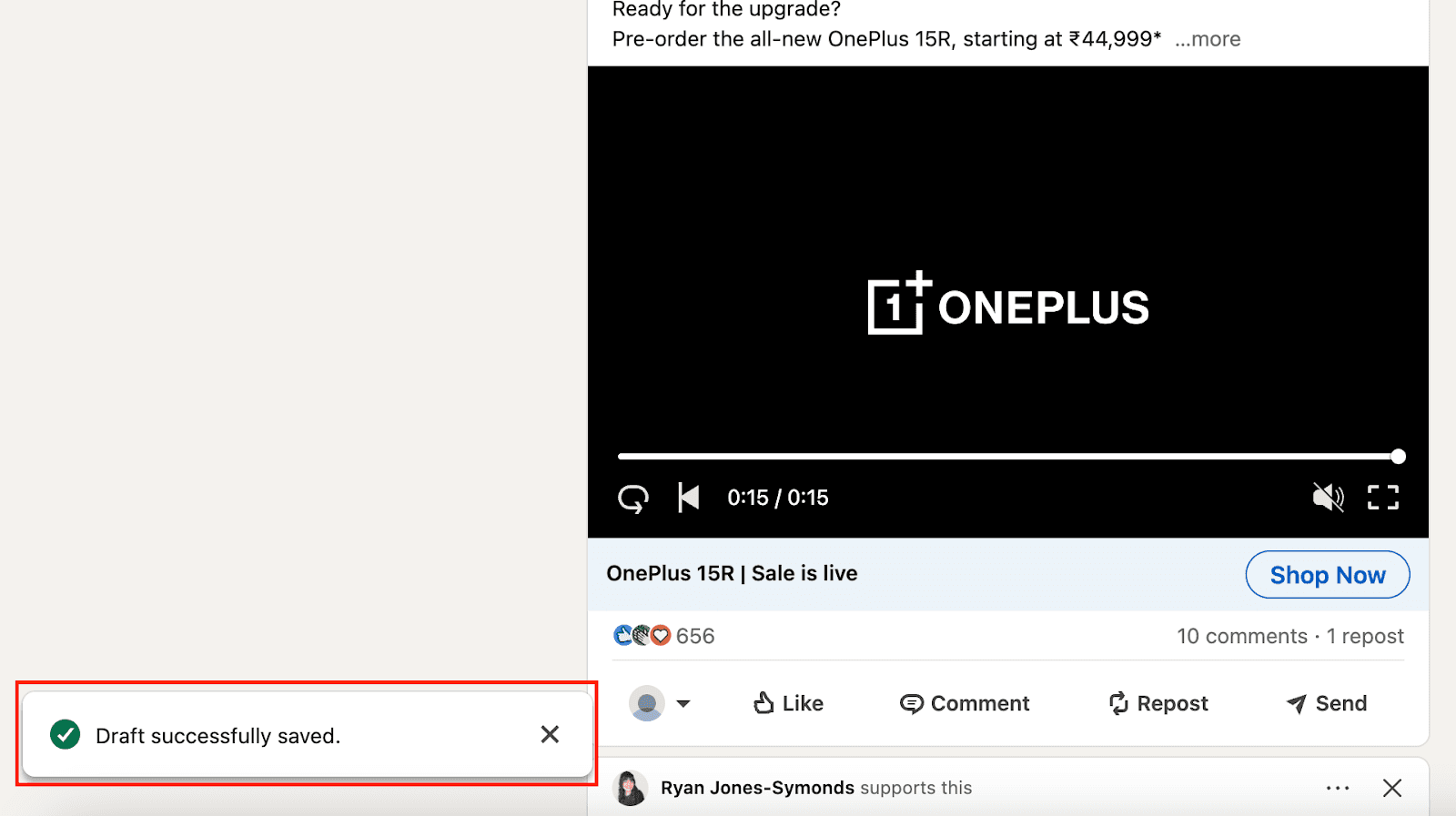
Important note: LinkedIn saves only one post draft at a time. Starting a new post can overwrite the existing draft, so always publish or copy important content elsewhere if you’re working on multiple posts.
How to Save Draft Posts on LinkedIn (Mobile App)
Saving LinkedIn draft posts on mobile works slightly differently from desktop and is more sensitive to how you exit the composer. Follow these steps carefully to avoid losing your draft.
Step 1: Start writing your post
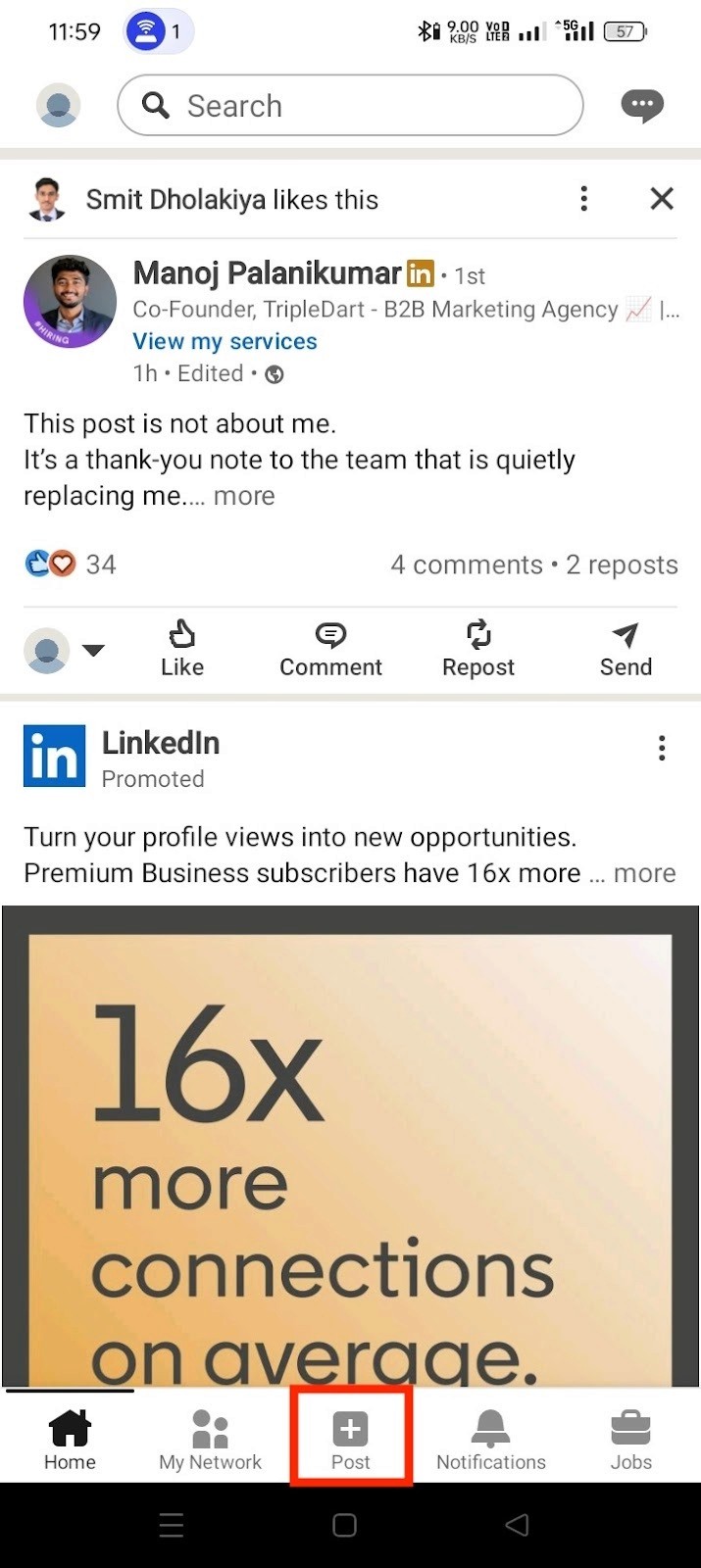
Open the LinkedIn app and tap the “Post” (+) button at the bottom. Begin writing your post as usual.
Step 2: Exit using the “X” icon
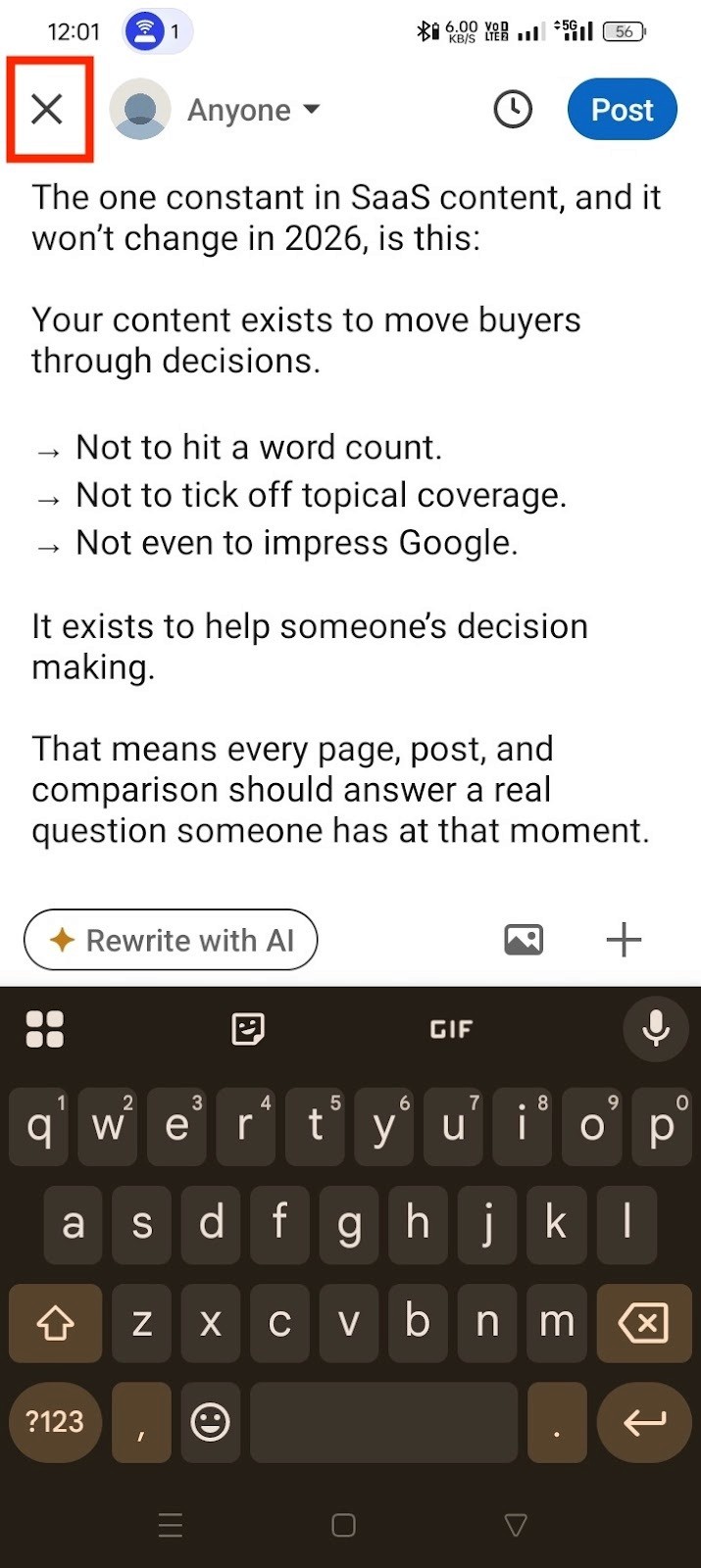
Once you’ve written something, tap the “X” icon in the top-left corner of the composer. Do not force-close the app or switch screens yet.
Step 3: Tap “Save” when prompted
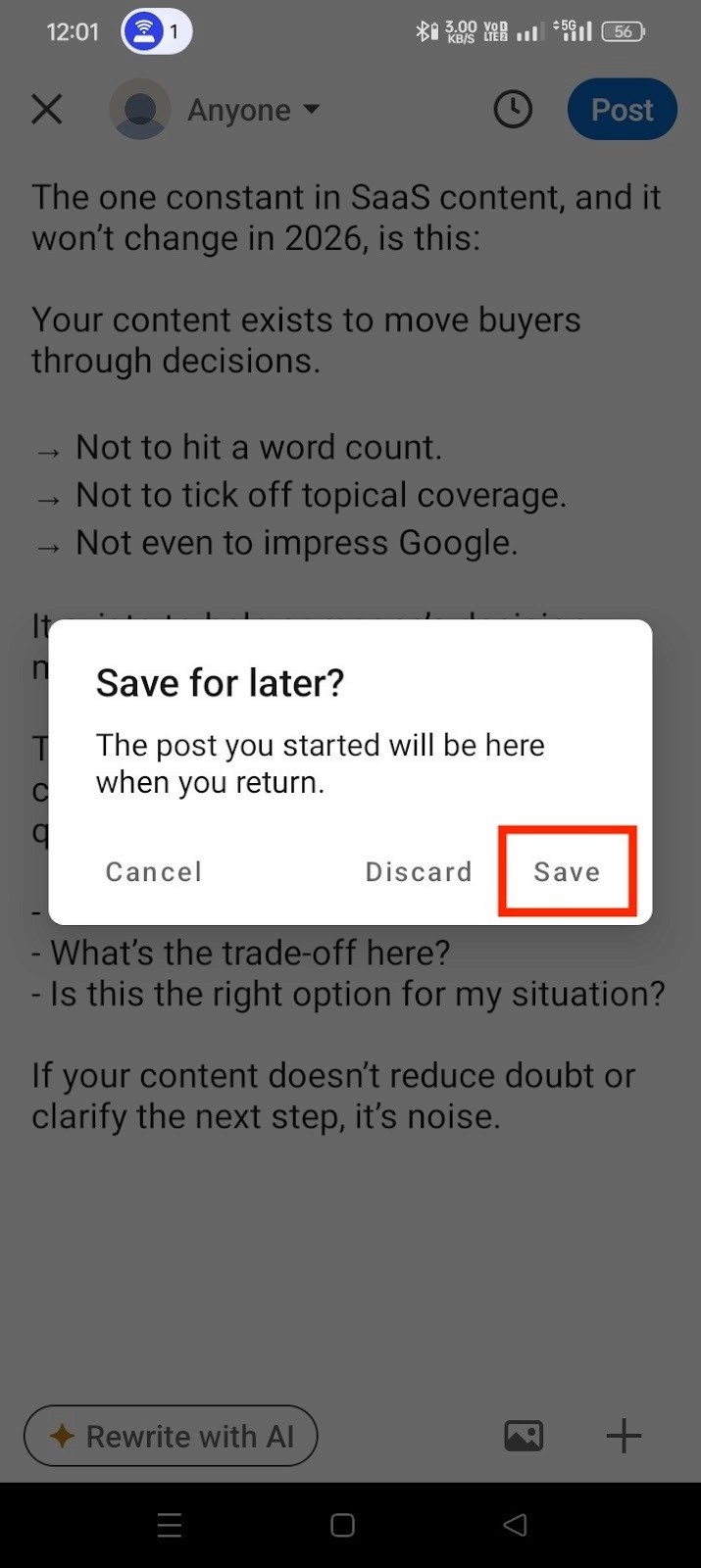
LinkedIn will show a prompt saying “Save this post for later?”
Tap Save (not Discard). This confirms the draft is stored.
Step 4: Look for the confirmation message
You’ll briefly see a message like “Post saved for later.” This is your only confirmation that the draft exists.
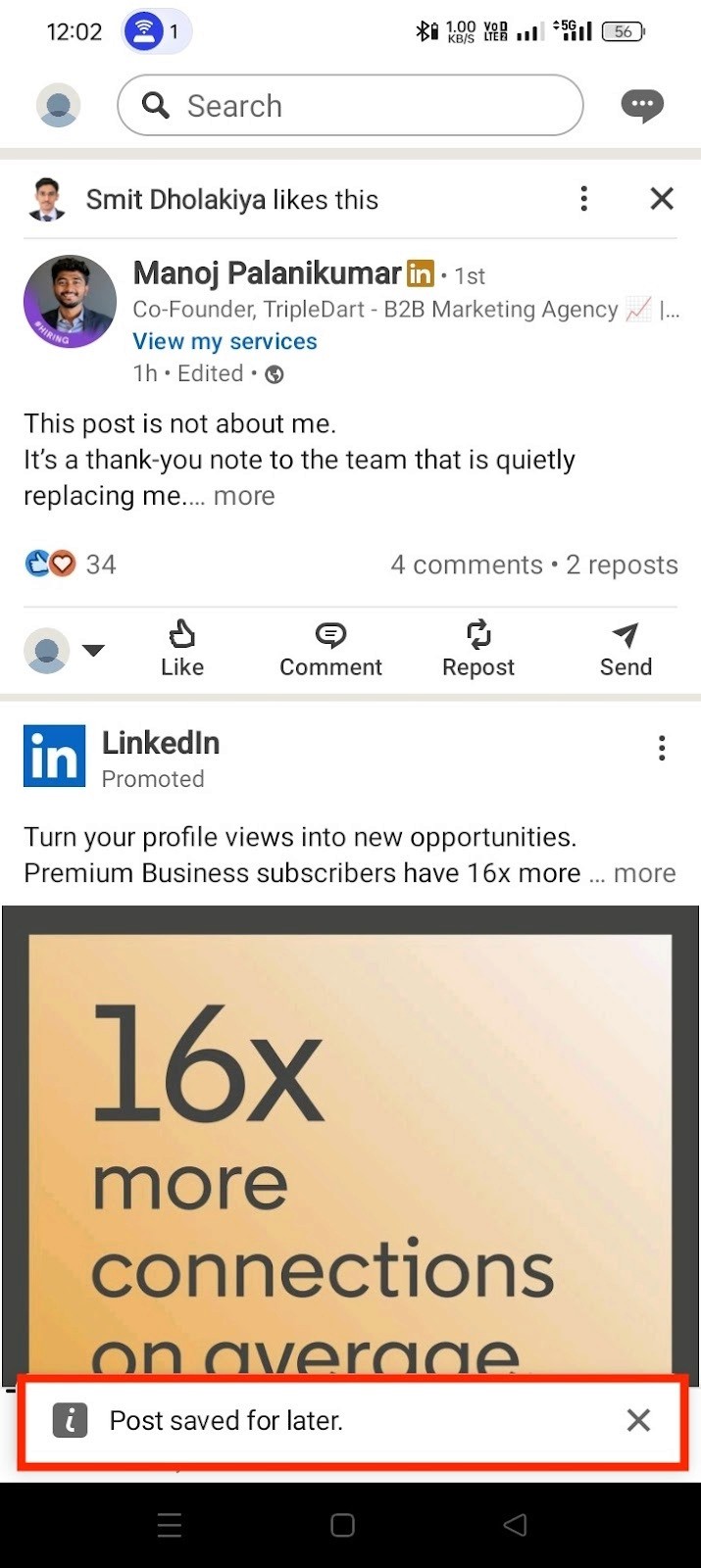
Important mobile note: Mobile drafts are fragile. Switching apps, locking your phone, app crashes, or logging out before saving can permanently delete the draft. Always wait for the save confirmation before leaving the screen.
How to Successfully Find Draft Posts on LinkedIn?
This section shows exactly where LinkedIn draft posts surface and just as importantly, where they don’t. LinkedIn doesn’t offer a visible “Drafts” folder for posts, so drafts appear only in specific places depending on device and session state.
How to Find Draft Posts on LinkedIn (Desktop)
LinkedIn does not offer a dedicated drafts folder for posts. On a desktop, a saved draft appears only when you reopen the post composer.
Step 1: Click on the “Start a post” section
From your LinkedIn homepage, click on the “Start a post” section at the top of the feed to open the create post window.
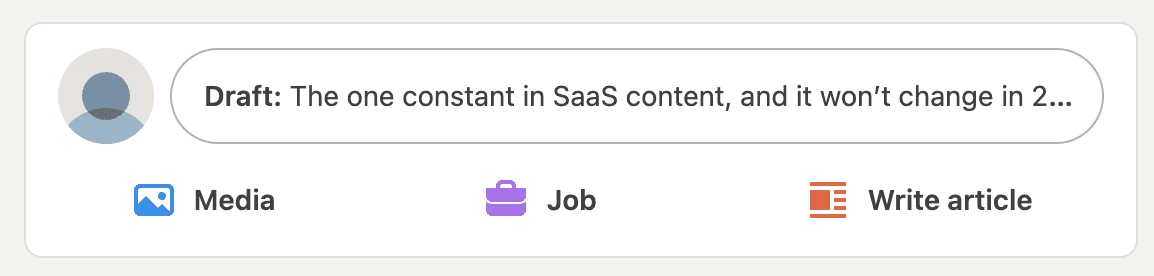
Step 2: Check if your draft auto-populates
If a draft exists, LinkedIn will automatically load it into the composer for editing and sharing. This auto-population is the only confirmation that your draft was saved.
What to expect when the composer opens:
-
Draft appears instantly: Your post was saved successfully and is ready to edit or publish.
-
Blank composer: No post draft exists and LinkedIn has nothing saved.
Important limitations to know upfront:
-
LinkedIn supports only one post draft at a time.
-
Drafts are not listed anywhere and cannot be searched or recovered.
-
If you click Discard, the draft is permanently deleted.
-
You cannot edit photos or videos inside a saved draft. To make changes, you must delete the media and re-upload it.
-
If you want to change post visibility (for example, audience settings), any attached files must be re-uploaded.
Clarification:
This applies only to LinkedIn post drafts. Drafts for LinkedIn Articles are stored separately and follow a different workflow.
If your draft doesn’t load when you click Start a post, it’s not hidden, it’s gone. This is exactly why relying on LinkedIn drafts for ongoing content work is risky.
How to Find Draft Posts on LinkedIn (Mobile App)?
On the LinkedIn mobile app, drafts don’t live in a visible folder. Just like a desktop, a saved draft appears only when you reopen the post composer, and it’s far more fragile on mobile.
Step 1: Open the LinkedIn app and tap “Post”
From the bottom navigation bar, tap the “+” (Post) button to open the post composer.
Step 2: Check if your draft auto-loads
If a draft exists, LinkedIn will automatically load it into the composer for editing and sharing. This auto-population is the only way to access a saved draft on mobile.
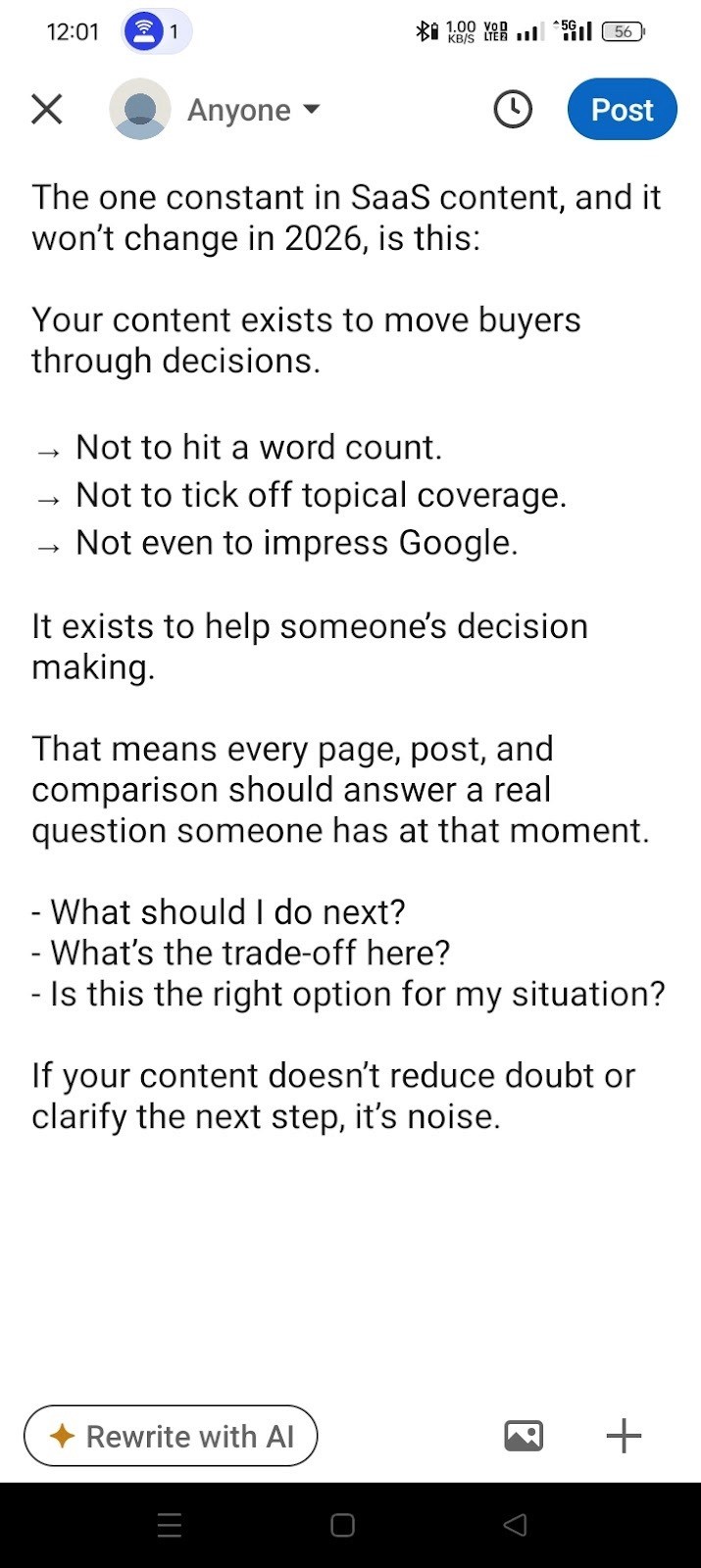
What you should expect:
-
Draft appears immediately: Your draft was saved successfully and is available to continue.
-
Empty composer: No draft exists—LinkedIn has nothing stored.
Step 3: Deleting a draft (if needed)
To delete a draft, tap the “X” in the top corner and choose Delete draft / Discard. This action is permanent and cannot be undone.
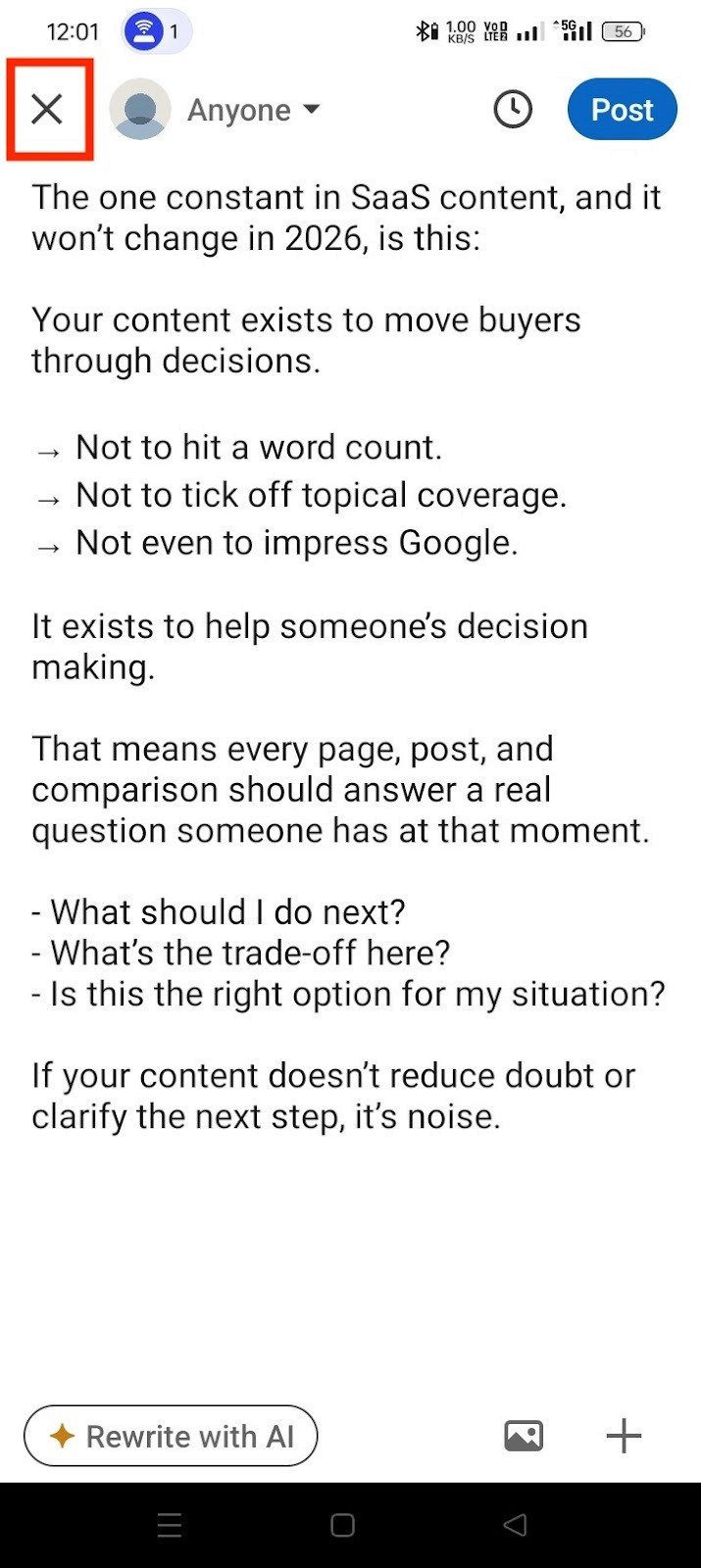
Critical mobile-specific limitations:
-
LinkedIn supports only one post draft at a time on mobile.
-
Drafts are session-based, not account-based. Switching devices, logging out, app updates, or clearing cache can cause drafts to disappear.
-
Drafts do not sync reliably between mobile and desktop.
-
If a draft doesn’t auto-load, it is very likely lost permanently.
Reality check for mobile users:
Mobile drafts are designed for quick pauses—not serious writing. If your post matters, don’t rely on LinkedIn’s mobile draft system to hold it safely.
This is why many creators draft elsewhere and use LinkedIn only to publish, rather than to write and store content within the app.
Key Limitations and Risks of LinkedIn Draft Posts
Before you rely on LinkedIn drafts as part of your writing workflow, it’s important to understand their built-in limitations. This section centralizes all the risks in one place so you know exactly where things can go wrong and why drafts often disappear without warning.
LinkedIn Supports Only One Post Draft at a Time
LinkedIn allows only a single post draft to exist at any given time. If you start writing a new post while an old draft exists, the new one can overwrite the previous draft, often without a clear warning.
This design makes accidental content loss common, especially for creators who jot down ideas frequently or switch between posts mid-thought. If you assume LinkedIn saves drafts independently, it’s easy to lose work you thought was safe.
Drafts Are Session-Based, Not Account-Based
LinkedIn post drafts are tied closely to your current session and device, not reliably to your account.
That means drafts can disappear if you:
-
Log out and back in
-
Switch browsers or devices
-
Update the app
-
Clear the cache or experience an app crash
Drafts also don’t sync consistently between desktop and mobile. A draft saved on one device may never appear on another, even when you’re logged into the same account.
No Recovery or Version History for Drafts
Once a draft is deleted, overwritten, or lost, it cannot be recovered.
LinkedIn does not provide:
-
Version history
-
Undo options
-
Draft archives
-
Restore or recovery tools
If you click Discard or a draft fails to load, the content is permanently gone. This makes LinkedIn drafts suitable only for quick edits not for storing important or long-form content.
Bottom line: LinkedIn drafts are fragile by design. They’re helpful for short pauses, but risky for anyone who writes regularly or across devices.
How Supergrow Helps You Draft Without Losing Content?
If you’ve ever lost a LinkedIn draft, the frustration breaks your momentum. You were mid-thought, mid-idea, and suddenly everything vanished. That’s the real problem Supergrow is designed to solve.
Draft Freely Without Overwrites or Session Risks
Supergrow removes drafting from LinkedIn altogether. Instead of relying on a fragile, single-draft system, you can create and manage multiple drafts at once, edit them over time, and return whenever you’re ready without worrying about overwrites, app refreshes, or device switches.
Your drafts live in a stable workspace, not inside a browser session. That means no accidental losses and no pressure to publish before you’re ready. You write on your terms, then publish intentionally.
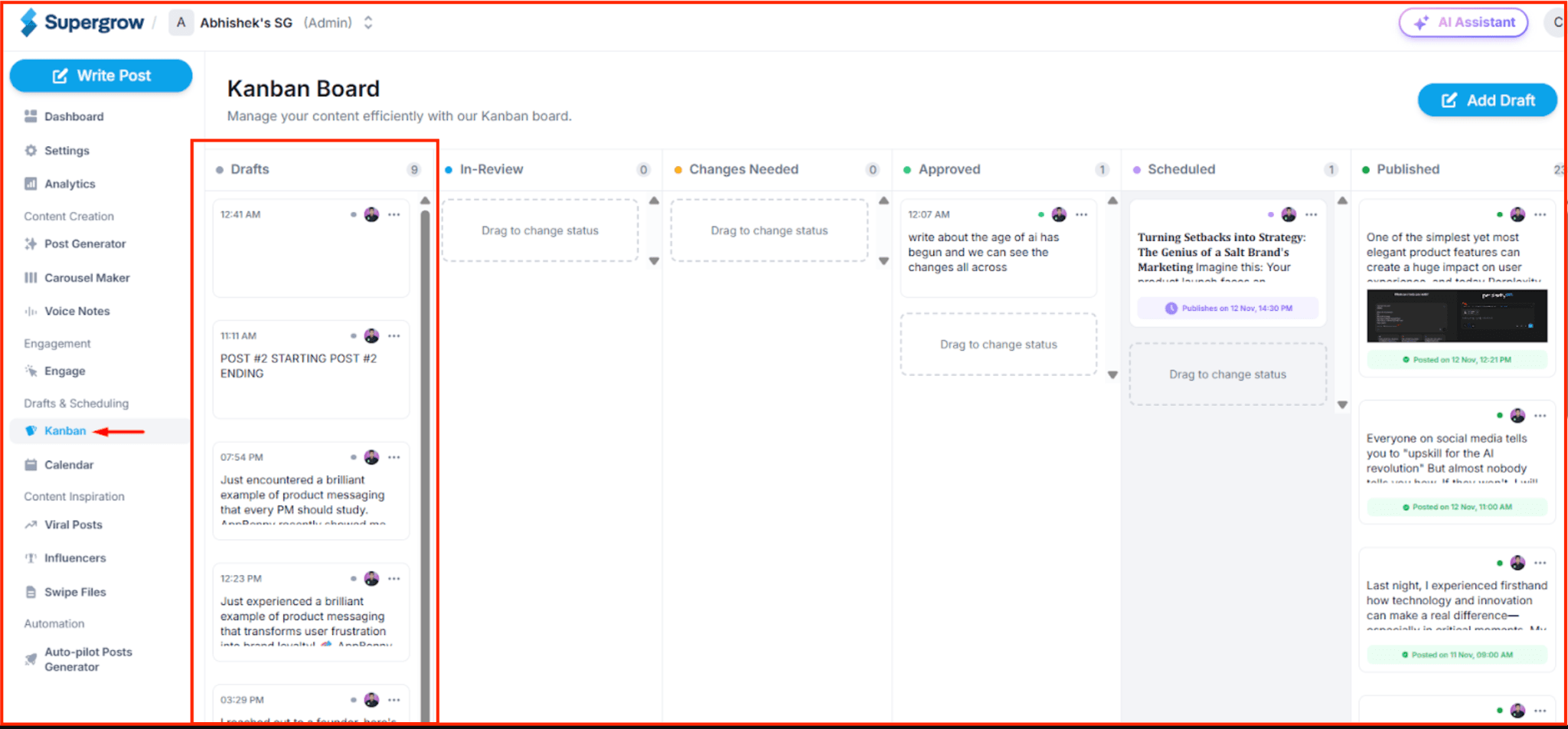
The result is a calmer, more reliable writing flow. Drafts don’t disappear. Ideas don’t get lost. And LinkedIn stops feeling risky and starts feeling manageable again.
Draft Safely, Publish Confidently
LinkedIn drafts are fine for quick edits, but they’re not built for serious writing. One draft at a time, session-based saving, and no recovery options make content loss almost inevitable if you rely on them regularly.
The safer approach is simple: write outside LinkedIn, keep your drafts protected, and publish when you’re ready, not when the platform forces you to. When your ideas and drafts live in a stable system, you spend less time rewriting lost posts and more time sharing thoughtful content consistently.
If you want to eliminate the risk entirely, Supergrow gives you a secure workspace to draft, organize ideas, and publish confidently without relying on LinkedIn’s fragile draft system.
Try Supergrow for free and turn LinkedIn into a repeatable content engine without running out of ideas again.