
Saving posts on LinkedIn feels like a smart habit until you actually need one and can’t find it. Between frequent UI changes, different paths on desktop vs mobile, and the way LinkedIn buries saved content, many people end up wondering where their LinkedIn saved posts even live.
And even when you do find them, there’s a second problem most people don’t talk about: saved posts rarely get reused. Ideas stay buried. Inspiration fades. You end up saving the same type of content repeatedly.
This guide solves both sides of the problem. First, you’ll learn exactly how to find saved posts on LinkedIn. Then, you’ll see how to organize them so they actually turn into ideas, comments, or content you can use.
How to Save a Post on LinkedIn: A Step by Step Guide
Before you can organize or reuse anything, you need to be sure you’re saving posts correctly. LinkedIn’s save feature works the same in principle across devices, but the placement and cues can differ slightly between desktop and mobile. Here’s how it works.
Saving a Post on LinkedIn (Desktop)
Saving a post on LinkedIn desktop takes just two clicks, but the option is easy to miss if you’re not looking in the right place.
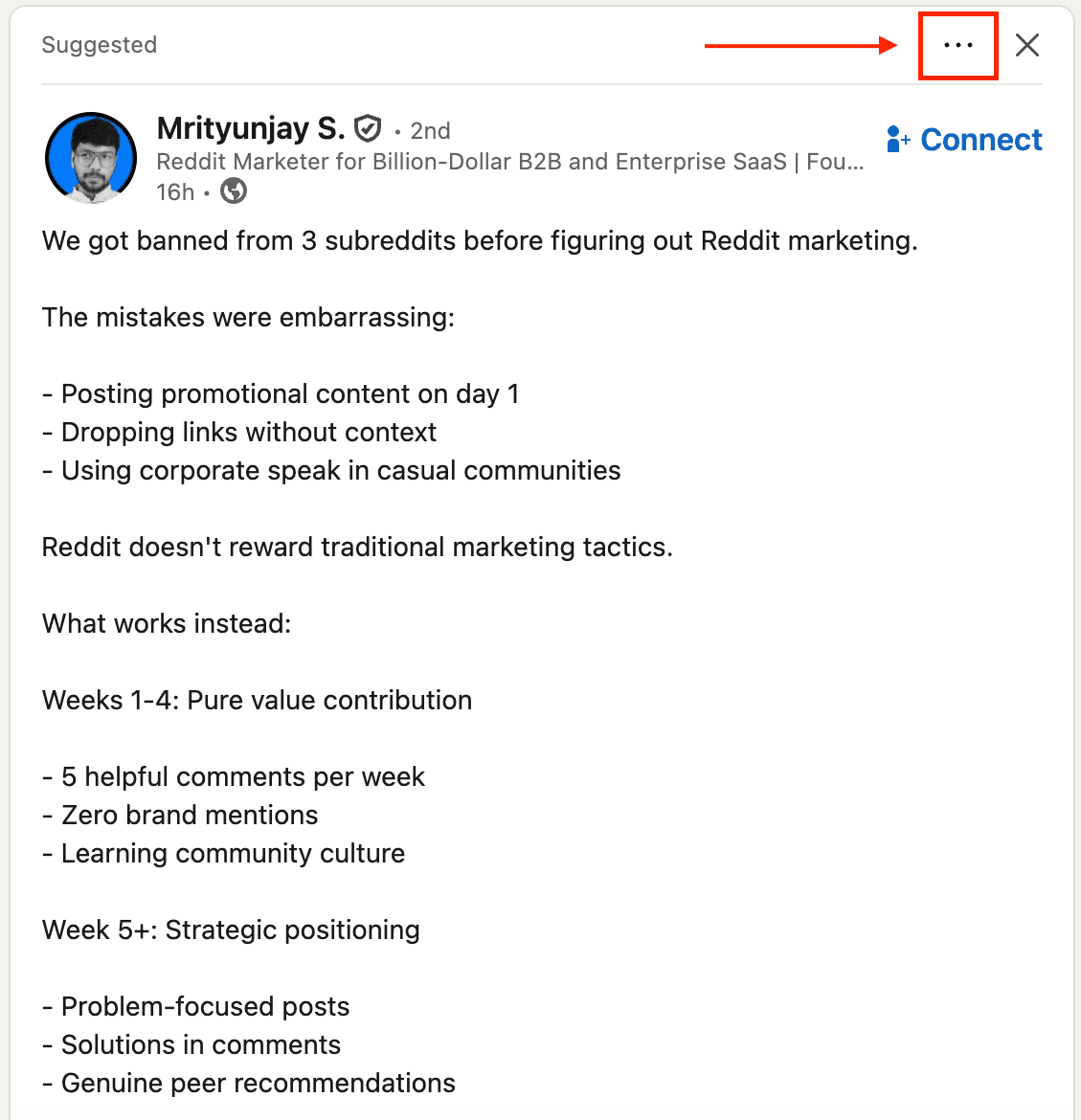
Step 1: Click the Three Dots on the Post
Once you find a post you want to save, look at the top-right corner of the post.
Click the three dots (⋯) icon, as shown in the screenshot above. This opens a dropdown menu with several actions.
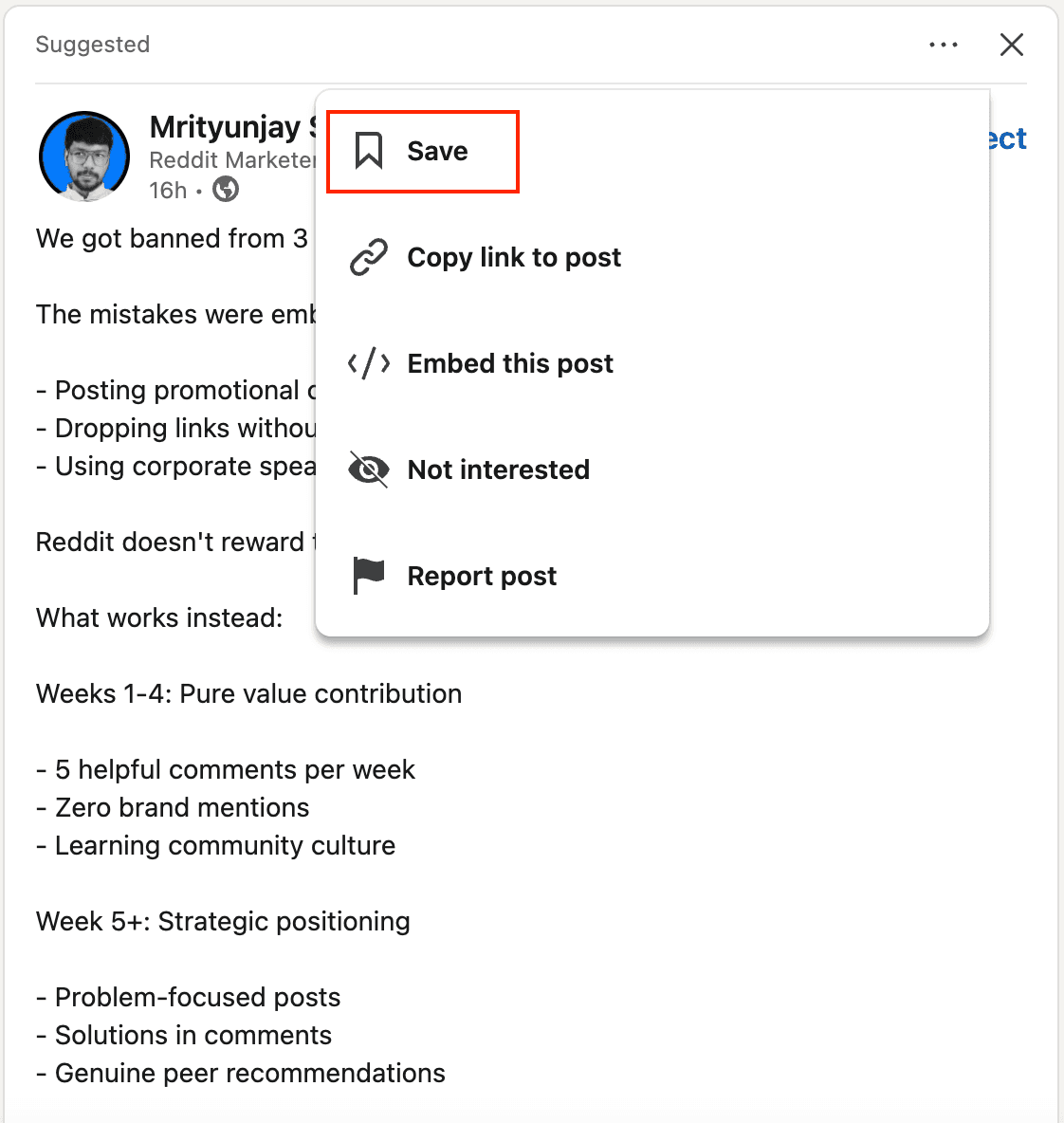
Step 2: Click “Save” from the Dropdown
From the dropdown menu, click Save. That’s it; the post is now added to your saved items. LinkedIn briefly shows a confirmation message so you know the action worked.
LinkedIn allows you to save multiple types of content using this method, including text posts, carousel posts, document uploads, videos, and LinkedIn articles. All saved items are treated the same, regardless of format.
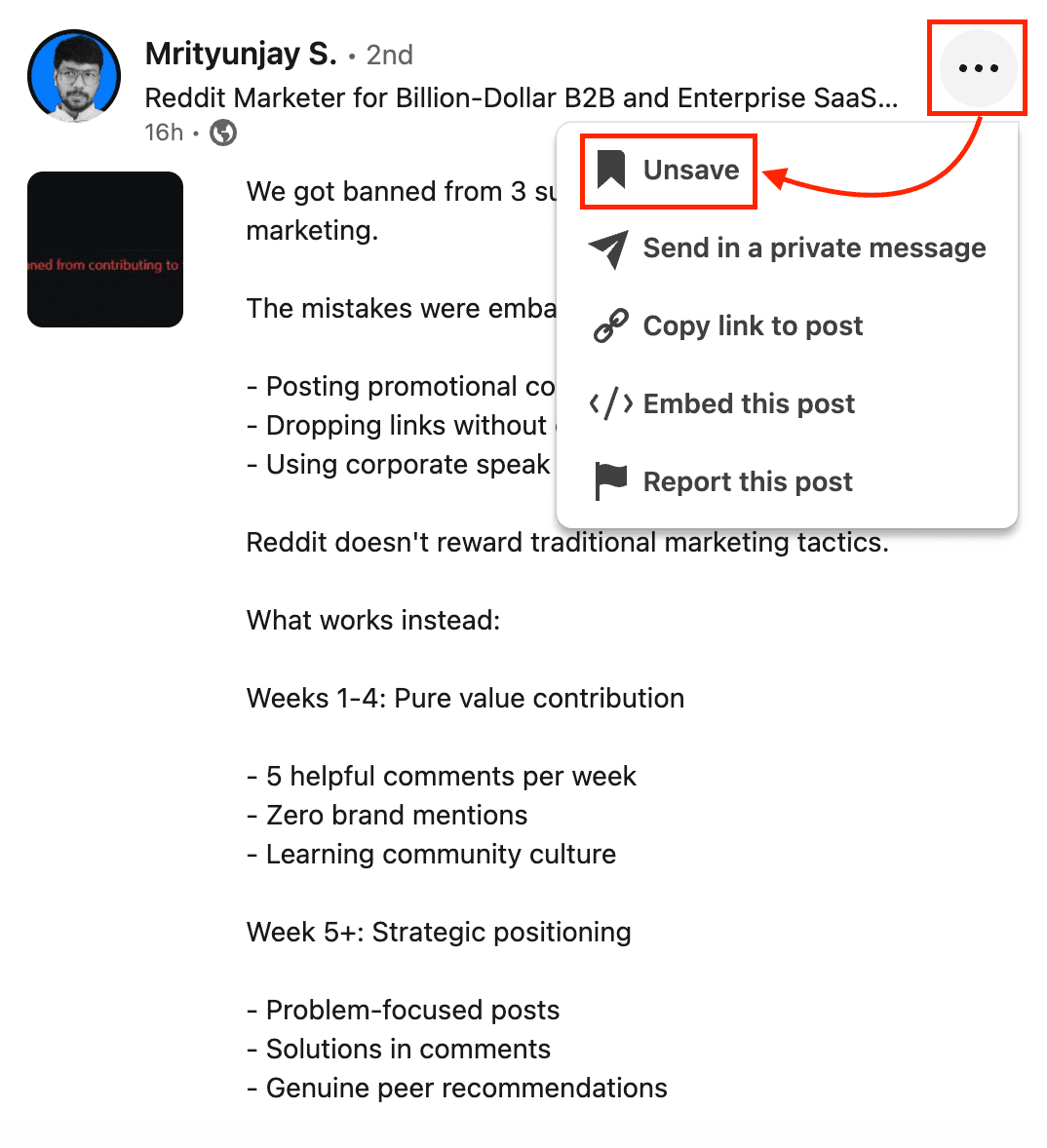
Bonus: If you save a post by mistake, you can reverse it at any time. Click the same three dots (⋯) again and select Unsave from the menu.
Saving a Post on the LinkedIn Mobile App
Saving posts in the LinkedIn mobile app follows the same logic as on desktop, but actions are condensed into a smaller UI. Here’s how to do it step by step.
Step 1: Tap the Three Dots on the Post
When you come across a post you want to save, look for the three dots (⋯) in the top-right corner of the post. Tap on it to open the action menu. This placement is consistent across most post types on both Android and iOS.
Step 2: Tap “Save”
From the menu that appears, tap Save. LinkedIn will briefly confirm that the post has been saved. At this point, the post is added to your saved items, with no folder or label applied.
On mobile, posts are often saved quickly while scrolling, which is why many people later forget why they saved something. This becomes important when we talk about finding and organizing saved posts next.
Now that you know how to save posts on both desktop and mobile, let’s move on to how to find your saved posts on LinkedIn, which is where most people get stuck.
How to Find Saved Posts on LinkedIn: A Step by Step Process
You’re not alone if you’ve saved something useful and later can’t remember where LinkedIn saved it. The path exists, but it’s not where most people expect, especially if you switch between desktop and mobile.
Finding Saved Posts on Desktop
If you’re on a desktop, LinkedIn keeps all your saved posts under one menu called Saved items. Here’s how you can find it:
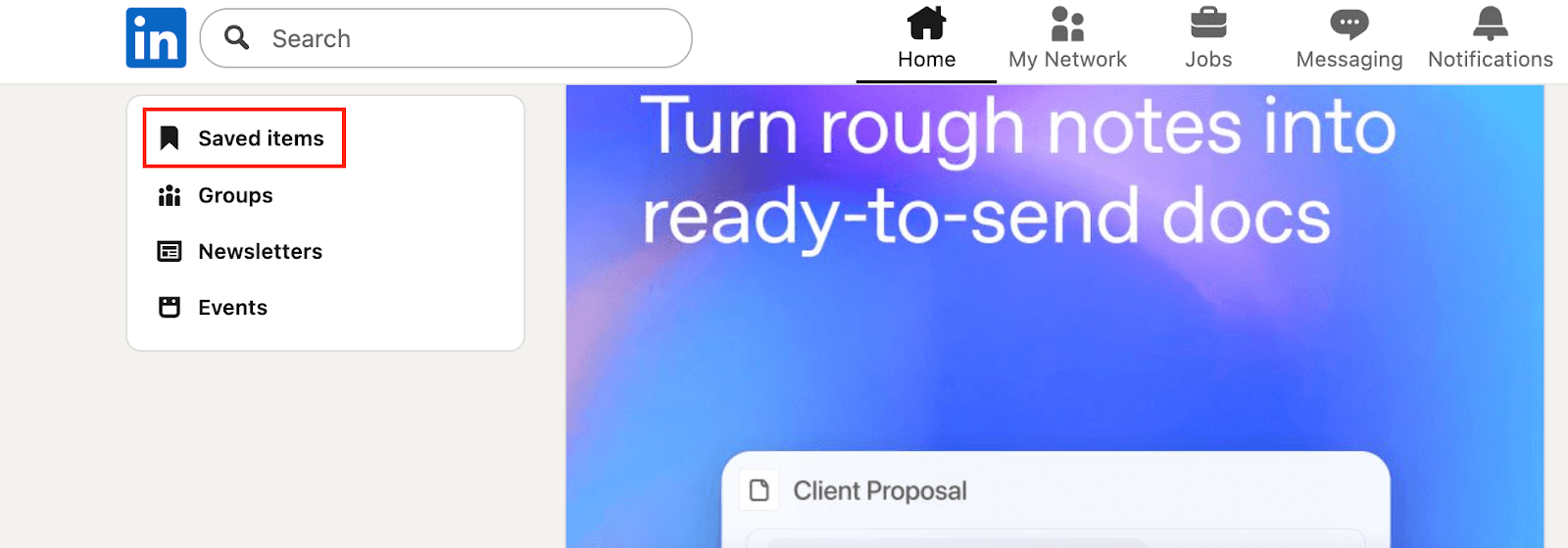
Step 1: Click “Saved items” from your LinkedIn home feed
On the left-hand sidebar of your home feed, find Saved items and click it. This opens your saved content hub (saved posts + saved articles).
Step 2: Open “Saved posts and articles”
Inside My items, click Saved posts and articles to load your full saved list.
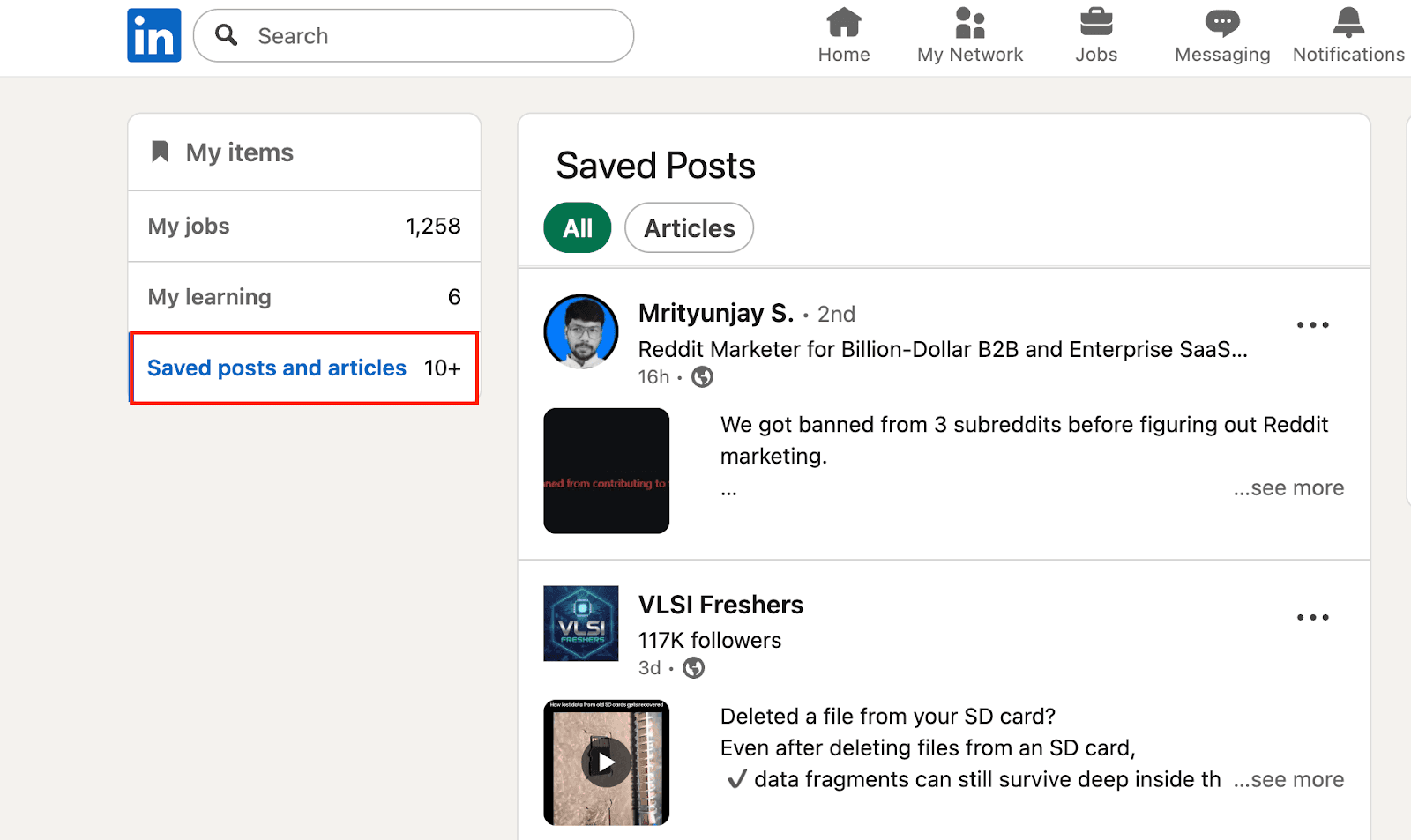
Step 3: Filter what you’re looking for
At the top, choose:
-
All (shows everything you saved)
-
Articles (shows only saved articles)
Then scroll to find the specific post you saved.
Finding Saved Posts on LinkedIn Mobile Apps
Finding LinkedIn saved posts on mobile works slightly differently than desktop, which is why many users feel they’re “missing.” Here’s the exact flow.
Step 1: Open your profile menu
Open the LinkedIn app and tap your profile icon in the top-left corner of the screen. This opens the main navigation drawer.
Step 2: Tap “Saved posts”
From the menu, tap Saved post. This takes you directly to your saved content.
Step 3: Browse your saved posts
You’ll see a single feed containing your saved posts and articles. Scroll to find what you’re looking for. LinkedIn does not currently offer filters, folders, or sorting on mobile.
Important limitation: On mobile, saved posts are harder to scan because there’s no tagging, search, or categorisation; everything appears in one continuous list.
Common Issues While Finding Saved LinkedIn Posts
Have you ever opened LinkedIn and thought that your saved posts have disappeared? In most cases, the posts aren’t gone; they’re just harder to find.
One common issue is confusing saved posts with saved articles. LinkedIn groups both together, but articles often appear separately depending on the view you’re in, which makes it feel like posts are missing.
Another source of frustration is UI changes. LinkedIn has quietly moved the “Saved” section over time, especially on mobile, where it’s buried inside the profile menu rather than visible on the feed.
Finally, saved posts can feel lost simply because there’s no way to search, tag, or sort them. As your saved list grows, older posts get pushed down, making them easy to forget even when they’re still there.
Effectively Organize LinkedIn Saved Posts Using Swipe Files
Saving posts on LinkedIn is only half the job. The real challenge is turning those saved posts into ideas you can actually reuse when you sit down to write, comment, or plan content.
Most people get stuck because they don’t have a system for organizing what they save, not because they don’t save enough.
Why LinkedIn’s Native Save Feature Falls Short
LinkedIn’s save feature is built for bookmarking, not for thinking.
Everything you save ends up in a single, unstructured list. There are no folders, no tags, and no context around why you saved something in the first place. Over time, your saved posts become a scrolling archive rather than a usable resource.
If you actively consume LinkedIn content, this creates friction fast. You save posts quicker than you can revisit them, and when you actually need inspiration, finding the right idea feels slow and frustrating.
What a Swipe File Is and Why It Solves This Problem
A swipe file is not just a place to store links. It’s a content library with intent.
Instead of saving posts to “read later,” swipe files help you capture what made the post useful — a strong hook, a clear framework, a carousel structure, or a sharp insight. You’re saving ideas, not just content.
This shift changes how you reuse LinkedIn posts. Patterns become easier to spot. Ideas are easier to recall. And when it’s time to create, you’re working from a curated library instead of starting from a blank page.
Next Step: From Saved Posts to Action
Finding your saved posts on LinkedIn fixes the surface problem. Building a system around them is what creates long-term value.
When saved posts live in isolation, ideas pile up and eventually get forgotten. But when you save with intent, organize what matters, and revisit ideas at the right moment, those saves turn into comments, content, and consistency. That’s how LinkedIn stops feeling scattered and starts feeling manageable.
If you want to go one step further, Supergrow helps you build that system end-to-end. From creating LinkedIn posts to posting consistently, Supergrow removes the need to keep saving posts just to stay inspired.
Try Supergrow for free and turn LinkedIn into a repeatable content engine without running out of ideas again.