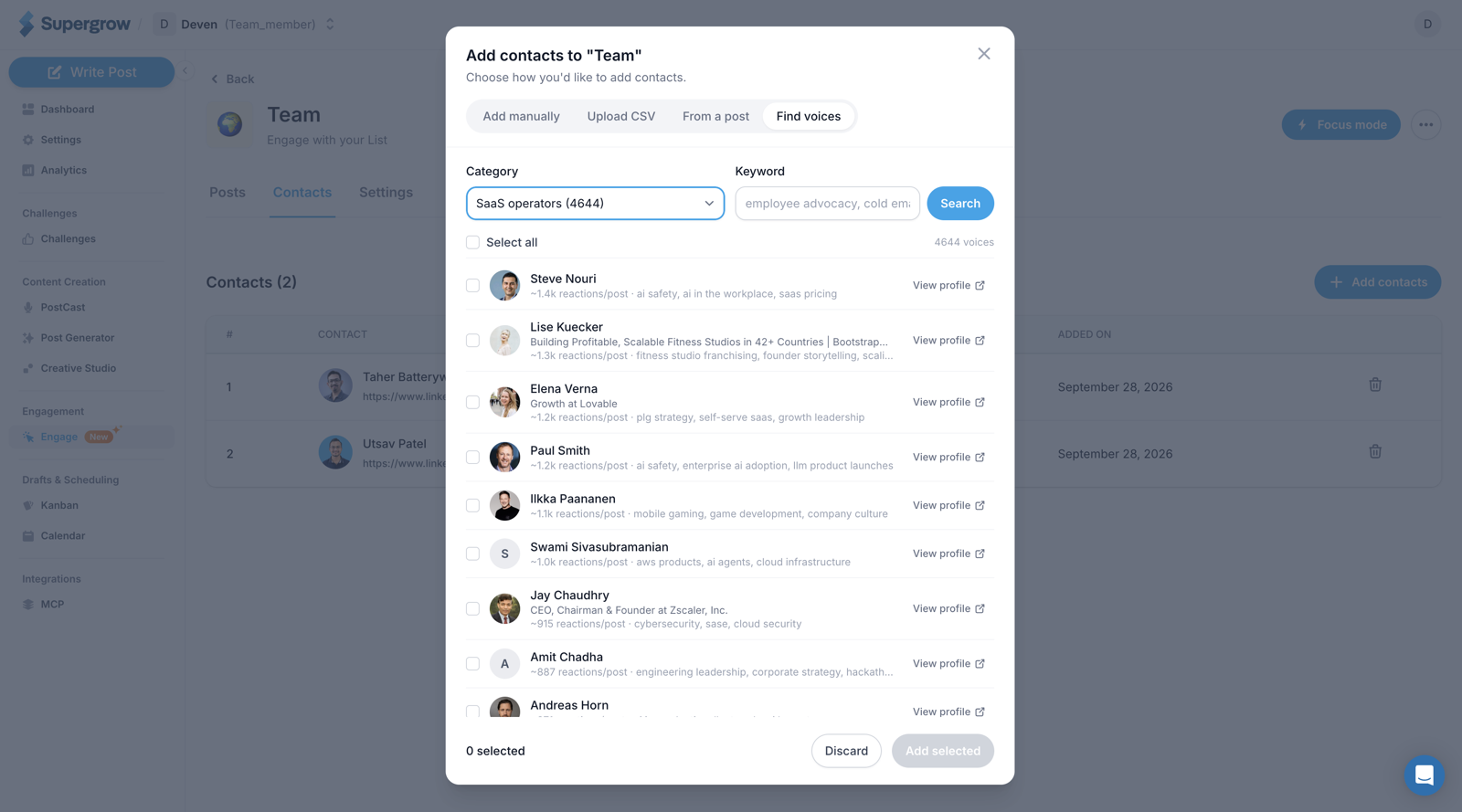
A Find voices tab lets you fill an Engage list by category and keyword from thousands of LinkedIn authors, most engaged first, without hunting for profile URLs.
Build a list without profile URLs
Adding contacts to an Engage list used to mean typing profile URLs, uploading a CSV, or picking commenters from a post. There is now a fourth way. Open Find voices in the Add contacts dialog, pick a category such as SaaS operators, and optionally add a keyword. You get LinkedIn authors whose posts draw that audience, sorted by how many reactions their posts usually get. Each row shows the topics they post about, with a link to their profile.
Tick the people you want, or select all, and add them to the list in one go.
Regenerate Content DNA for one workspace or all of them
Advocacy adminsGhostwriters & agencies
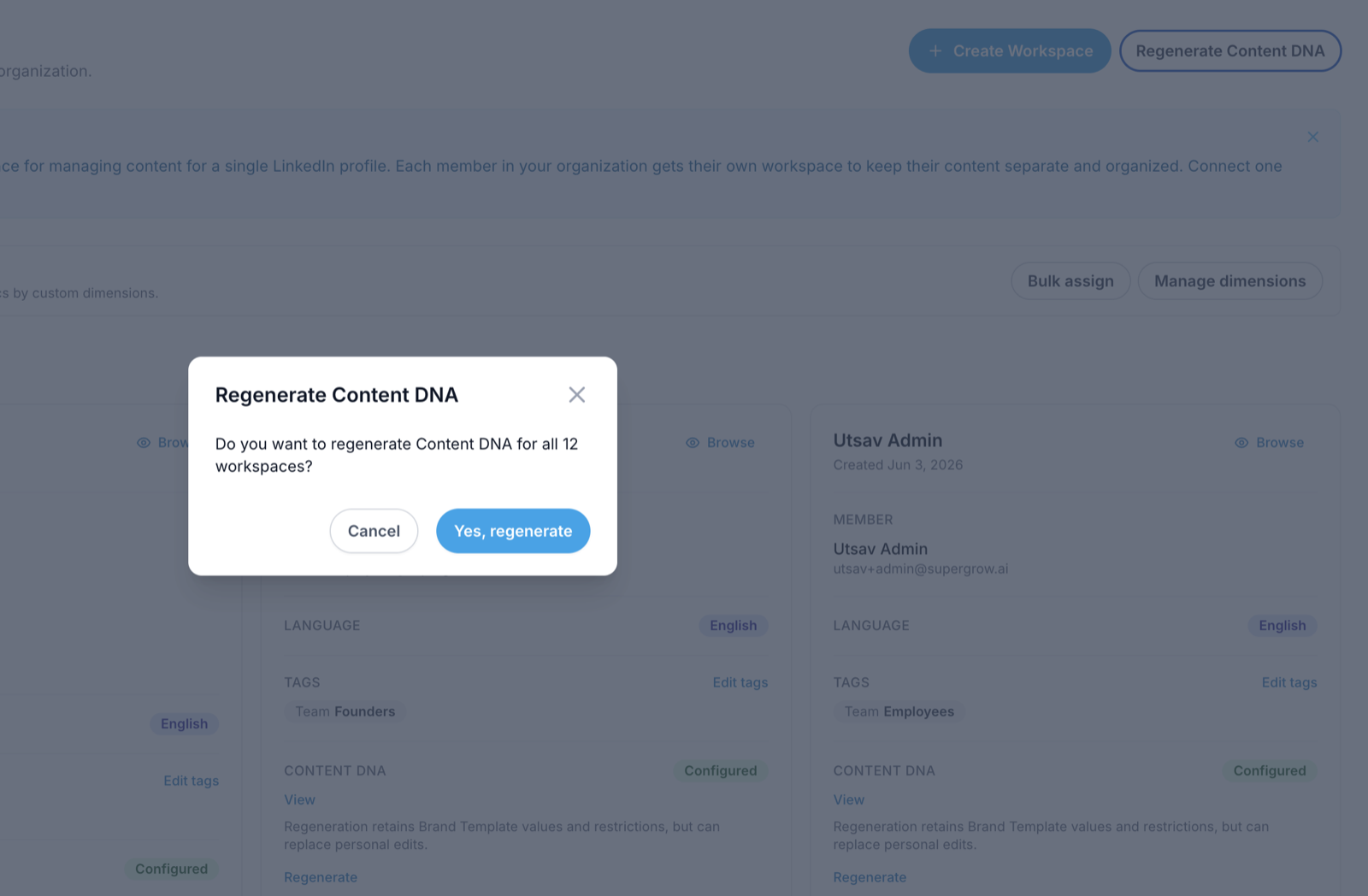
Admins can regenerate Content DNA for a single member or for every workspace at once and watch it progress. Members without LinkedIn history can regenerate from posts they published through Supergrow.
Every workspace at once
Regenerate Content DNA sits in the header of the organization's Workspaces page, next to Create Workspace. After you confirm, a panel tracks the run as each workspace finishes. It lists any workspace that was skipped or failed, with the reason. Close the panel when you are done.
One member at a time
Each workspace card has its own Regenerate link under Content DNA, so you can refresh one member without starting a run for the whole organization.
When LinkedIn can't help
Regeneration reads the member's recent LinkedIn posts. If LinkedIn can't return them, it uses the posts that member published through Supergrow, as long as there are at least five. It keeps the values and restrictions your Brand Template sets, but it can replace edits the member made to their own Content DNA.
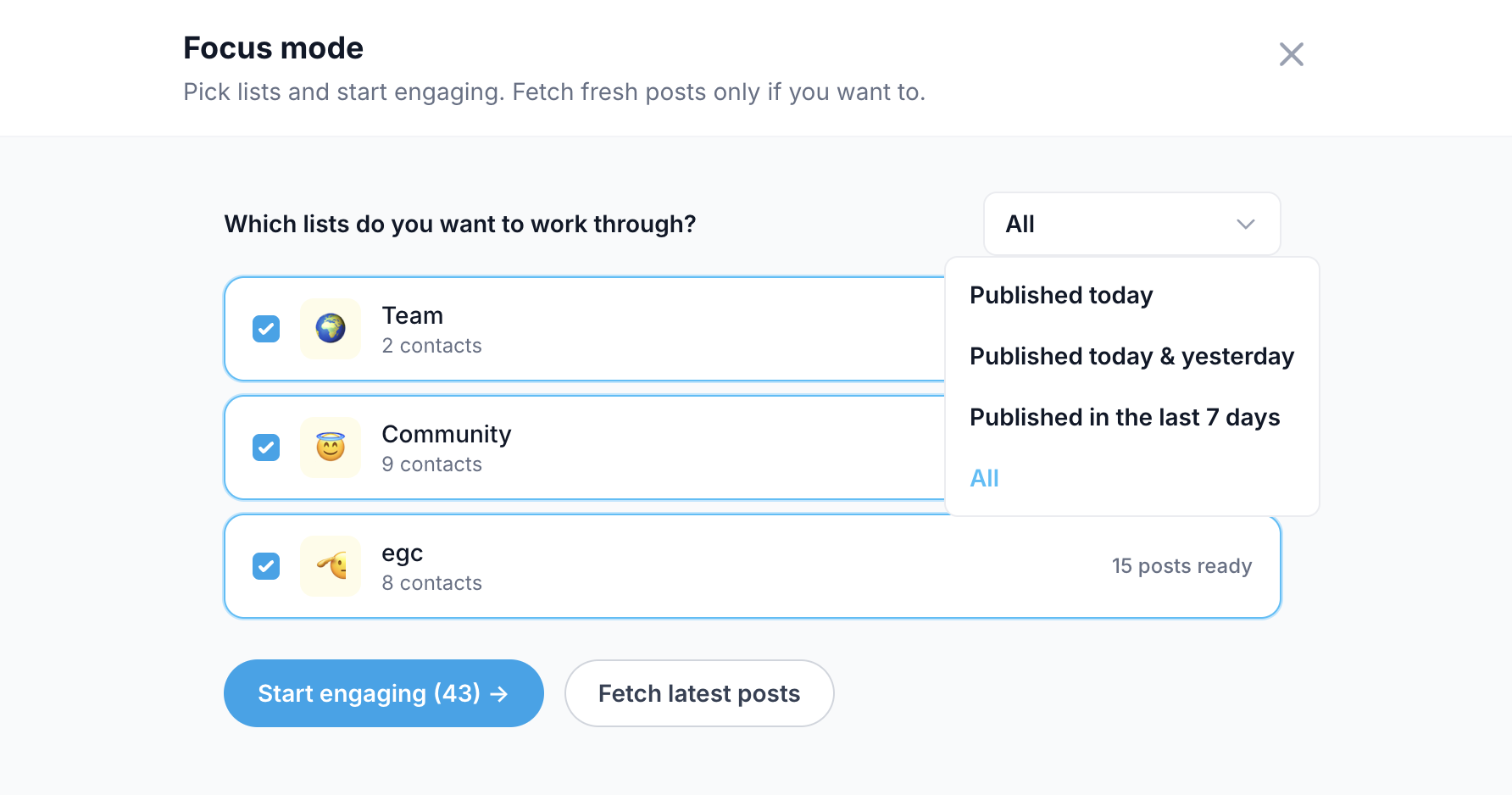
Focus mode has the same date filter as the list page, so you can work through only the posts published today, today and yesterday, or in the last 7 days.
Only recent posts
Focus mode used to load every pending post in the lists you picked, however old. It now has the same filter as the list page: published today, today and yesterday, or in the last 7 days. Pick one from the dropdown next to your lists, or leave it on All. A list you haven't opened in a while starts with posts that are still worth commenting on, not a backlog of stale ones. Changing the filter reloads the lists you selected.
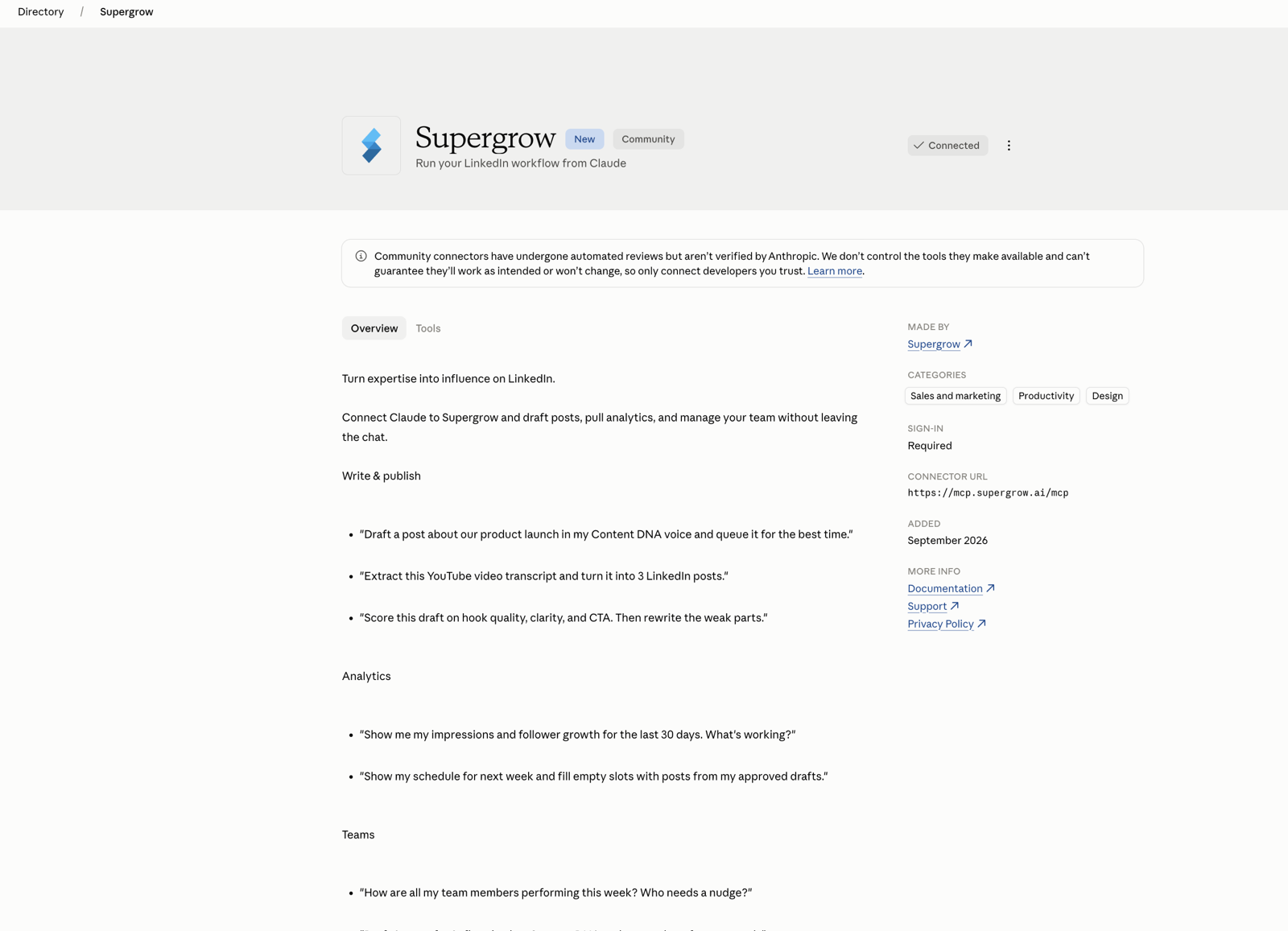
Supergrow is listed in Claude's connector directory. Claude and ChatGPT connect by signing in to Supergrow and approving access, so there is no API key URL to copy.
Sign in instead of pasting a key
Connecting Claude or ChatGPT used to mean creating an API key and pasting a connection URL that contained it. Both now use sign-in. You add Supergrow, sign in to your account, and approve access on a consent page that shows which app is asking and what it will be able to do.
In Claude, open Supergrow in the connector directory and click Connect. The MCP page in Supergrow links to the listing. ChatGPT takes the plain server URL shown on the same page. Other tools, such as OpenClaw and Manus, still use an API key, and existing key connections keep working.
Each Supergrow tool is now labelled as read-only or as a change, and the ones that delete, overwrite, publish to LinkedIn, or regenerate Content DNA are marked destructive. Claude uses these labels to decide what to check with you first.
The post table uses the same names as the cards above it, calculates engagement the same way, and says why its totals differ. The previous-period percentages were removed because they compared the wrong things.
Why the cards and the post table disagree
The cards at the top count everything that happened on your account during the date range, including activity on older posts. The post table adds up lifetime totals for posts published in that range. They measure different things, so their numbers won't match. The table now says so in its subtitle.
Same names, same maths
The post table's "Likes" column is now "Reactions". It always counted every reaction type, just like the card.
"Reshares" is now "Reposts".
The table's engagement rate is total interactions divided by total impressions, the same formula as the cards. It used to average each post's own rate, which gave a 100-impression post the same weight as a 20,000-impression one.
Each row shows when that post's numbers were last updated, so a stale row no longer looks fresh.
Previous-period percentages removed
The "vs. prev. period" badges on the trend cards didn't compare against the previous period. They measured a trend within the selected range, so we removed them. They will come back once they compare against the previous period.
The PostCast interviewer checks each answer and digs deeper when it has nothing to write about, instead of moving on when the clock says so. AI comments now write as you, to the post's author.
Follow-ups when an answer said nothing
The PostCast interviewer used to spend a few minutes on each question and then move on, whether or not you had said anything a post could use. It now checks every answer. When there is nothing to work with yet, it asks a follow-up, such as an example, a number, or what happened next. When the answer is solid, it moves on. If you say you want to move on or have nothing more to add, it does. After two follow-ups on the same question, it moves on anyway.
This is now how every PostCast interview works. There is no setting to turn it on.
Fixes
AI-suggested comments write as you and address the post's author by name. Before, a comment could mix the two up, greeting you or crediting your experience to the author.
A member you removed can be invited again with the same email. Posts are capped at 20 images, with a clear message when you go over.
Invite a removed member back
Removing a member who had accepted their invitation used to be final. Inviting the same email again was refused with "Email has already been invited to this organization", and nothing in the app could clear it. An accepted or rejected invitation no longer blocks a new one. Two open invitations to the same person are still refused.
Fixes
A post takes at most 20 images, which is LinkedIn's limit, and tells you when you go over.
Organization analytics adds reactions, comments, reposts and followers gained across all members, a full leaderboard with totals, and a By member tab for one account at a time.
Overview: totals across everyone
Until now, adding up followers gained, reactions, comments and reposts across a team meant opening each workspace in turn. The Overview tab of organization analytics shows all four alongside impressions, engagement and Earned Media Value, each with its change against the previous period and a trend. The member leaderboard lists every member instead of the top ten, with the new metrics as sortable columns, an organization total row and an average per member. The date range and tag filter apply to all of it, and the grouped comparison gets the same rows per tag.
By member: one account at a time
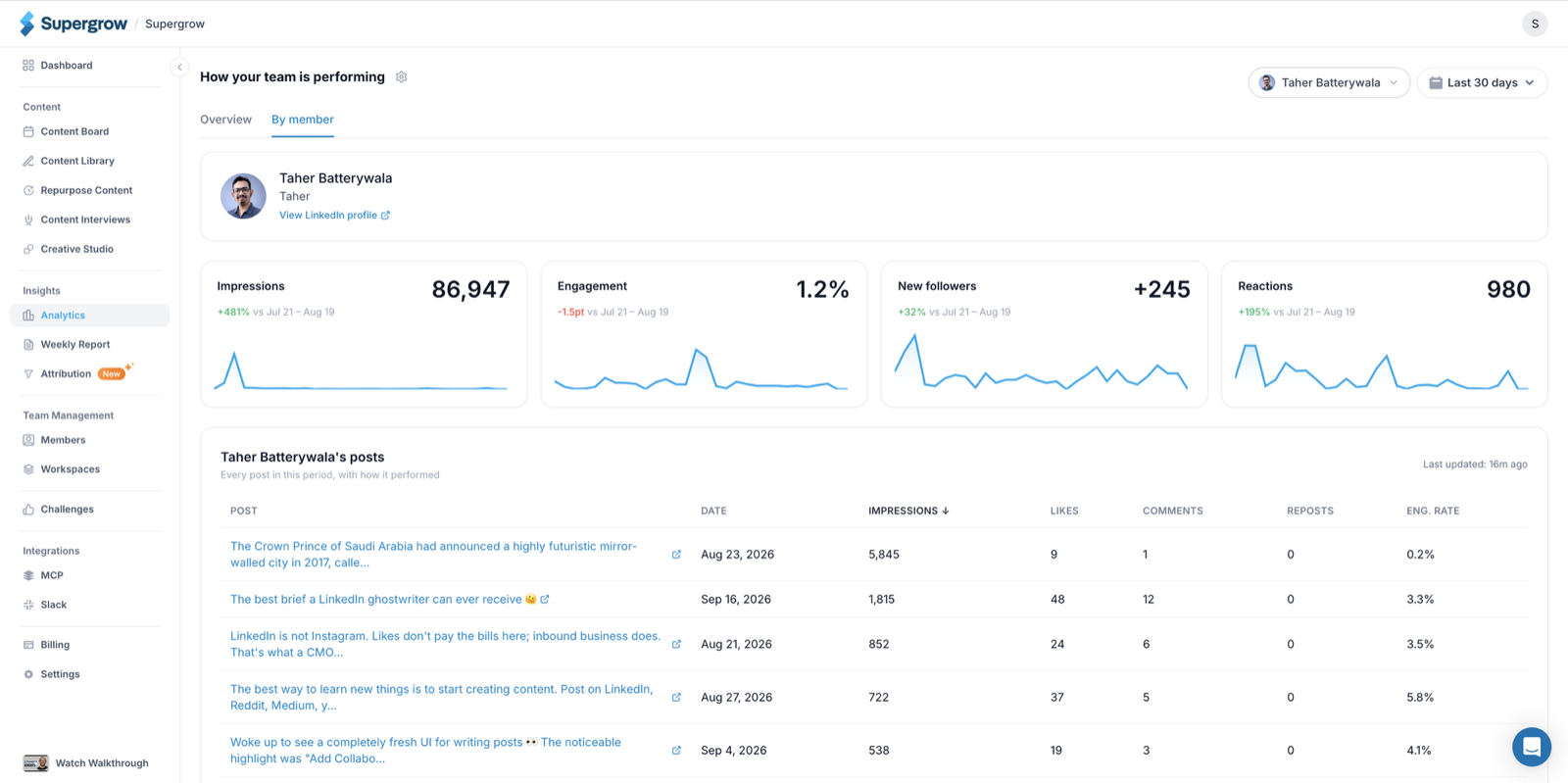
The By member tab shows one LinkedIn account. Pick a member from the searchable picker and you get their profile, four trend cards for impressions, engagement, new followers and reactions, and a table of every post in the period with how it performed. The link carries the member, so you can share one person's view.
Reviewers can leave feedback on the whole post without highlighting any text first. Highlighting still works when a comment is about one line.
Feedback without a selection
Feedback on a post used to require highlighting some text first. Anything about the post as a whole, like "the hook is weak" or "too long", had to be pinned to a random line. Now you can type feedback and send it with nothing selected. It applies to the whole post. To comment on a specific line, highlight it first as before.
This works in the feedback panel on a content card and on a shared post preview link.
Admins and owners with a workspace of their own can take part in a challenge, and pending invitations show on the organization dashboard.
Join the challenge you created
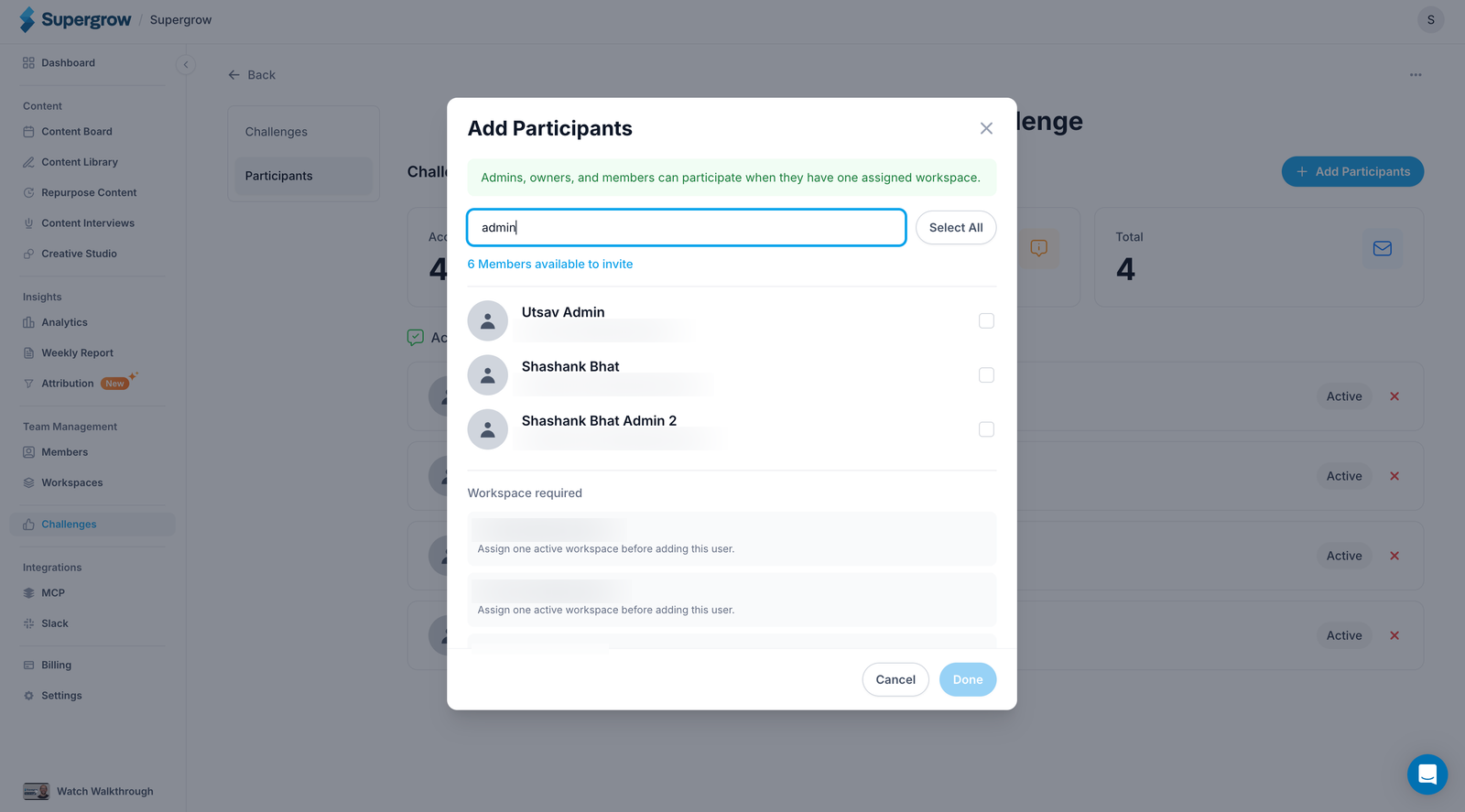
Admins and owners with a workspace of their own can now take part in a challenge. When you create one you are asked whether to join it, and you are added straight away. Admins and owners also appear in the participant list, so you can invite another admin. Members without a workspace are listed under Workspace required until one is assigned.
Invitations on the dashboard
Pending invitations appear in a Challenge Invitations section on the organization dashboard, with Accept and Reject buttons. Reminder emails now open the right workspace.
Fixes
The assistant shows an error when a reply fails to stream instead of waiting forever.
Attach an image from your media library or a GIF from GIPHY to a comment. Engage also flags posts and contacts you already engaged with from another list.
Comment with an image or a GIF
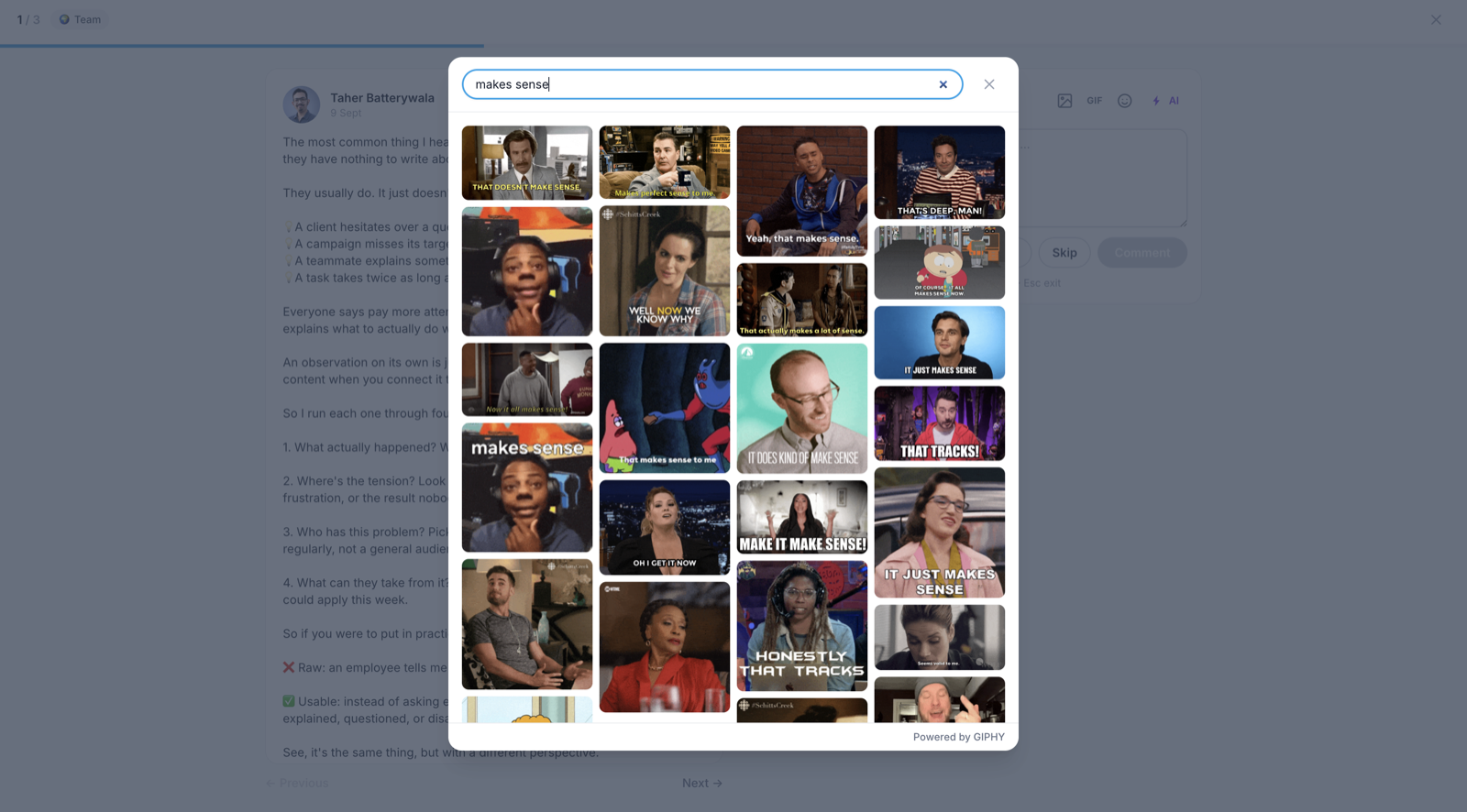
A comment can carry one image from your media library, or a GIF from the GIPHY search in the comment box. JPG, PNG and GIF are accepted.
Already engaged, already in a list
If you engaged with a post from another list, the post is labelled with that list's name. A contact who is already in another list gets the same label. Commenting a second time on a post your workspace already commented on asks for confirmation.
Adding contacts now accepts percent-encoded LinkedIn profile and company URLs.
Repost a post as it is, or with a line of your own on top, as your profile or a company page, without leaving Engage.
Repost, with or without your own line
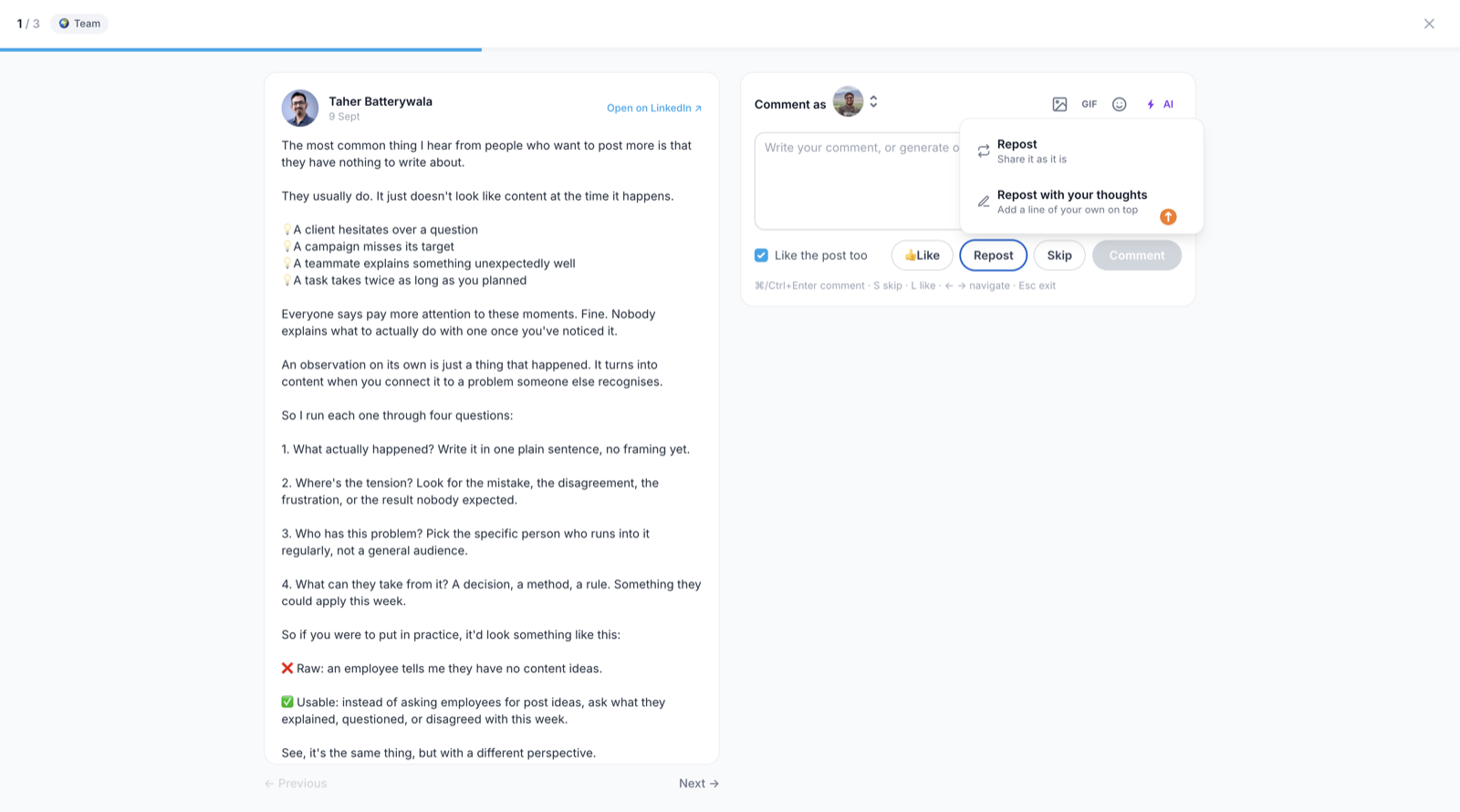
Repost a post as it is, or add your own line above it. You can repost as your profile or as a company page. A post you already reposted is marked. Works in the list view and in Focus mode.
When your LinkedIn connection has expired, reacting or reposting opens the reconnect prompt.
Worth Your Take is back, and Content DNA stays the client's
EveryoneGhostwriters & agencies
The weekly report's Worth Your Take section is restored and no longer suggests job ads. Content managers no longer rebuild a client's Content DNA.
Worth Your Take is back in the weekly report
In late August one weekly run lost the Worth Your Take This Week section in almost every report, and the emails went out without it. It is restored, and the affected reports have been refilled.
Job postings and careers pages are now excluded from the articles it suggests. When no article is good enough, the section is left out instead of filled with the first result.
Content managers no longer rebuild a client's Content DNA
A content manager given access to a client's workspace saw the "build your Content DNA" screen. Answering it rebuilt the client's Content DNA from the manager's LinkedIn profile. Content managers now skip that screen and go straight to the workspace. Clients invited into an agency workspace still build their own Content DNA, because the workspace writes in their voice.
The Like button in Engage is now a reaction picker with Like, Celebrate, Support, Funny, Insightful, and Love.
Reaction picker
The Like button is now a reaction picker with Like, Celebrate, Support, Funny, Insightful, and Love. It works in the list view and in Focus mode. It shows the reaction you already sent, and picking another one replaces it. In Focus mode, L still sends a quick like and does not overwrite a reaction you chose.
Fixes
A post that published after a failed attempt no longer shows a "something went wrong" banner and a "Scheduled" chip in the View Post modal.
Repurpose content validates the YouTube video ID before accepting a link.
The Last 6 Months analytics range starts on the correct day when today is the 29th, 30th or 31st.
Regenerating PostCast posts gives you different posts
EveryoneIndividual creators
Regenerate Posts no longer returns the same three posts with different wording.
Different angles each round
Regenerate Posts used to return the same three posts with different wording. Each round now uses different angles from your interview, the posts are no longer forced into a story, a tactical post and a vulnerable post, and the model is given every post already written in the session so it does not repeat them.
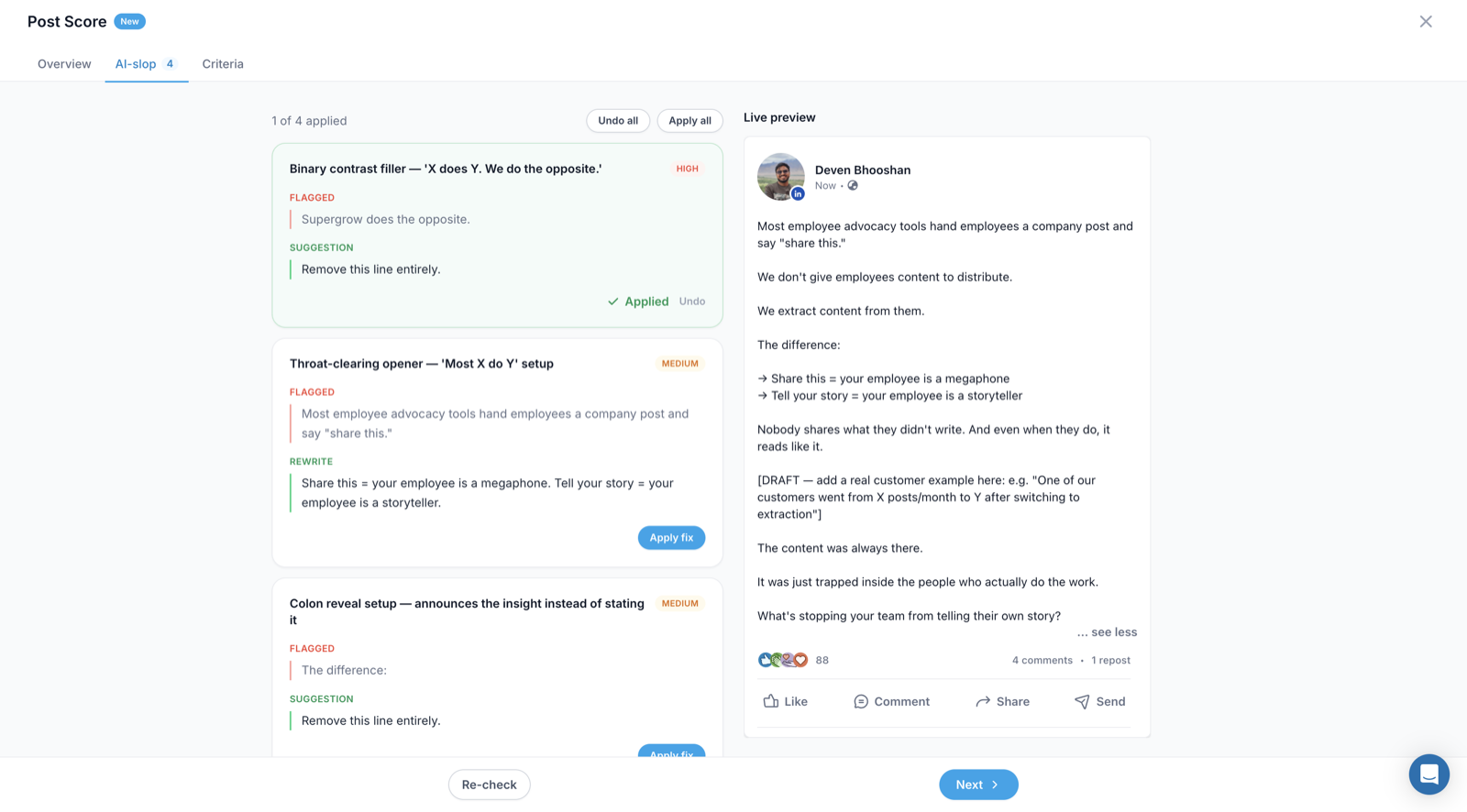
Every fix you apply from Post Score can be undone on its own, and Undo all restores the original post.
Undo, one fix at a time
Each fix you apply now has an Undo button. Undo all restores the original post, including formatting and mentions. Undoing one fix leaves the others applied, and the cursor stays where it was.
Fixes
Dropdowns near the top of the page are no longer hidden behind the "Back to organization" banner.
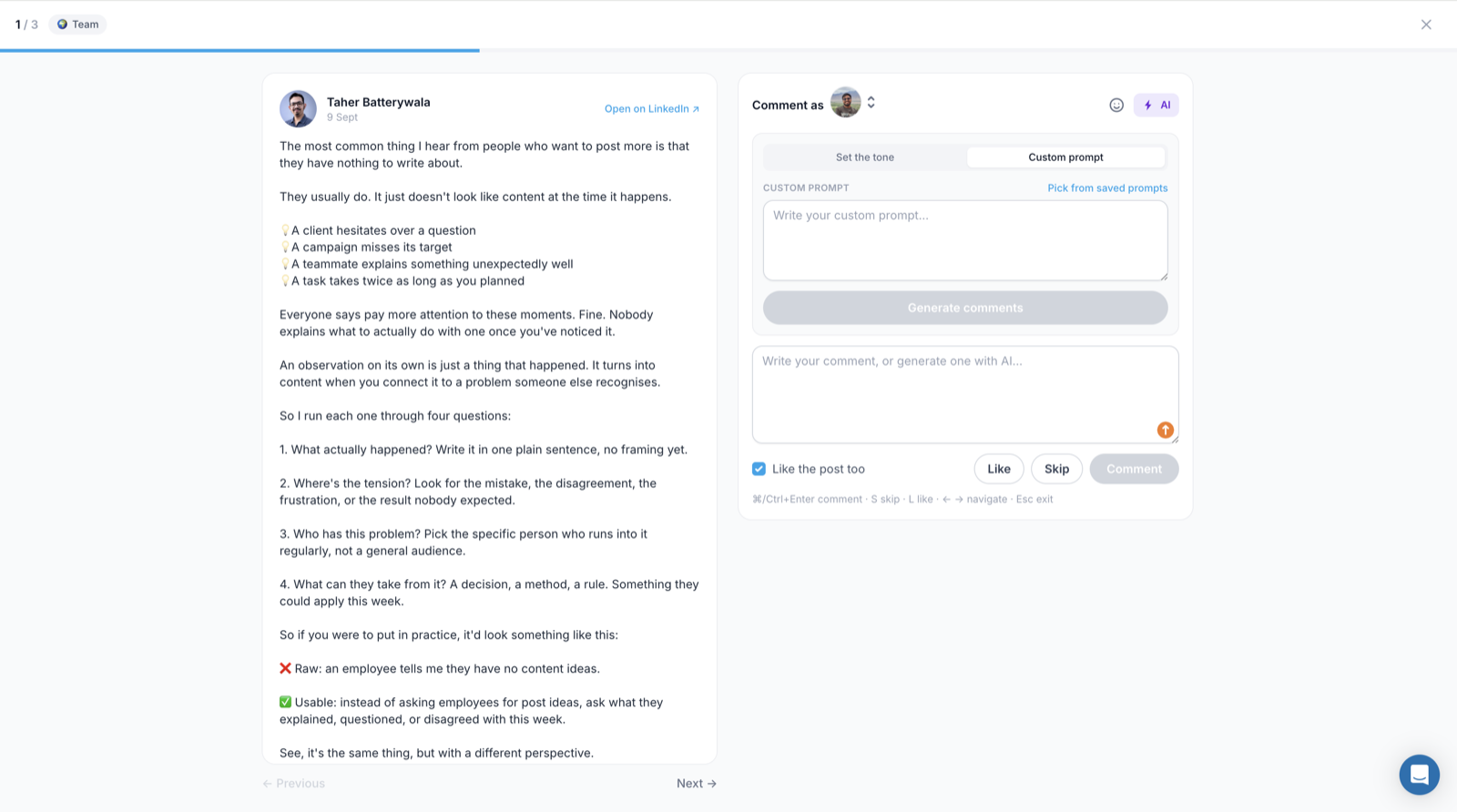
The AI comment panel in Focus mode takes your own prompt, or one of your saved prompts, instead of only the tone presets.
Custom prompt tab
The AI comment panel in Focus mode has a Custom prompt tab, the same one the list view has. Write a prompt for this comment, or pick a saved prompt. You can create and edit saved prompts from the panel. Escape closes the prompt dialog; a second press leaves Focus mode.
Sharper post images
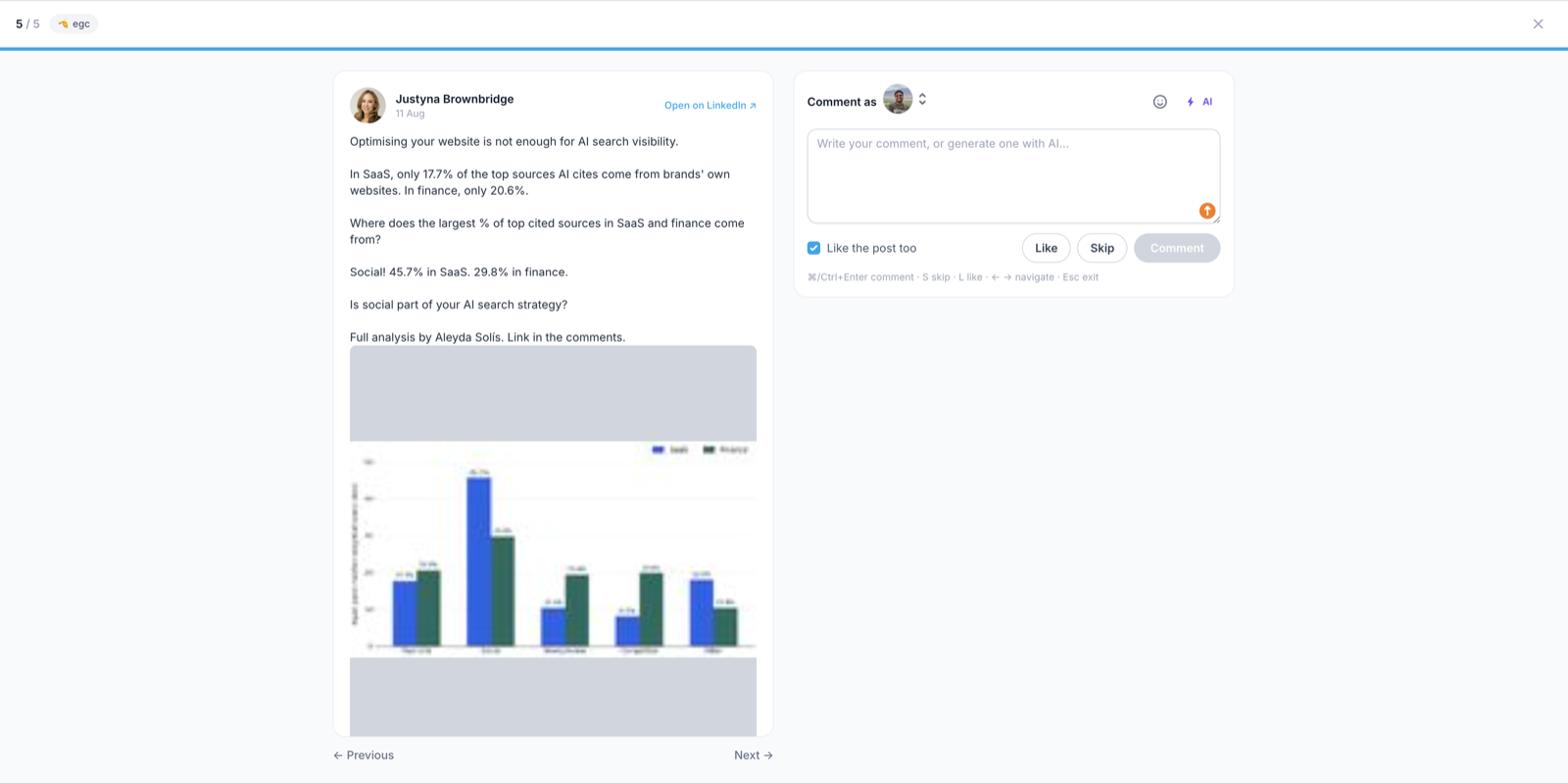
Post images in Focus mode render at their own size instead of being stretched to fill the column. We also store the largest version of each image in a post, which fixes the blurry thumbnails.
Commenting got a distraction-free mode, Post Score split into performance and authenticity, and your upcoming slots now sit on your dashboard.
Focus mode in Engage
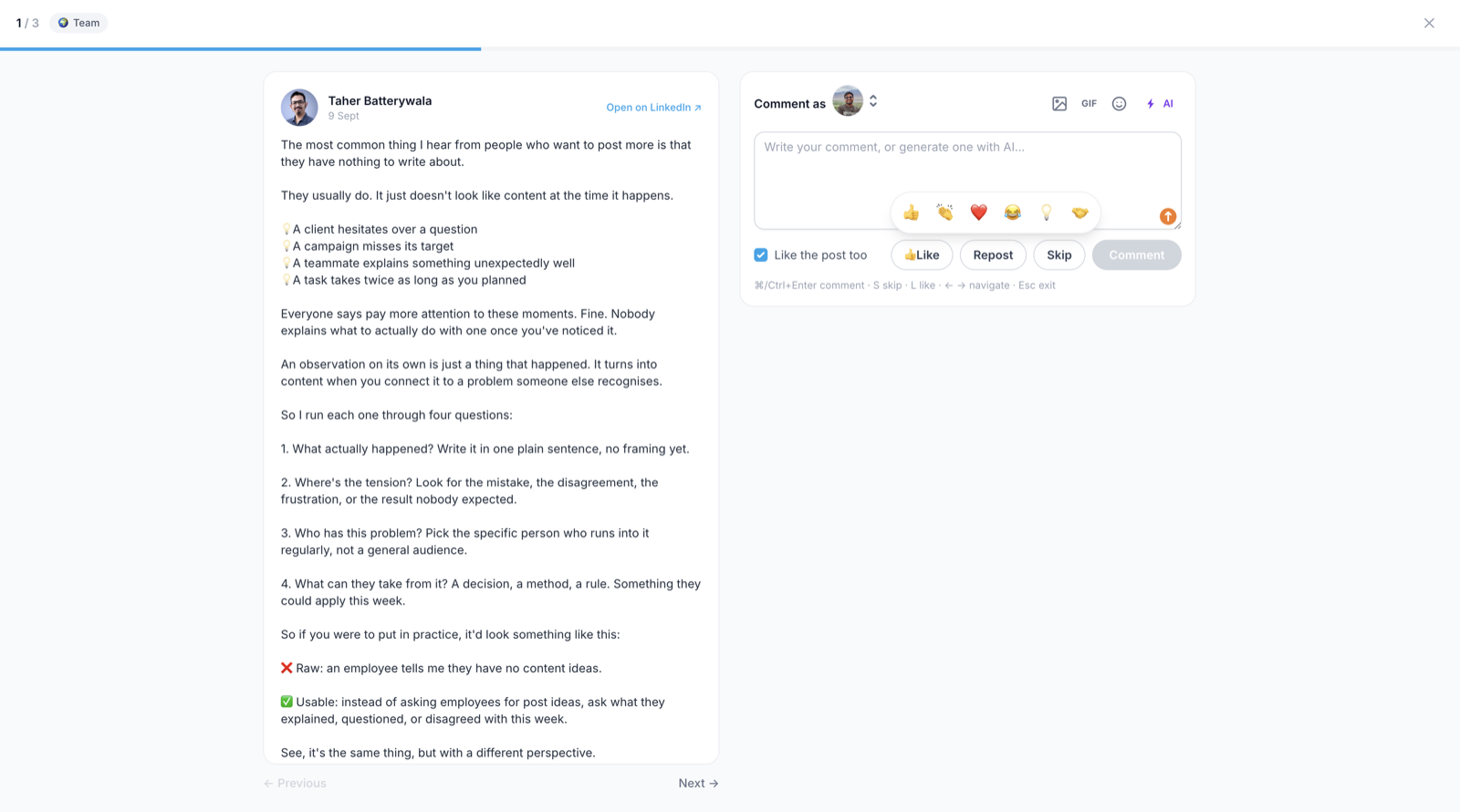
Your list, one post at a time, with a counter so you know how far through you are. The post sits on the left and the comment box on the right, so you never leave for LinkedIn. Write the comment yourself or generate one, tick "like the post too", and move on.
It is built for the keyboard. S skips, L likes, Cmd+Enter comments, the arrow keys move you through the list, and Esc gets you out.
Build a list from a post's comment section
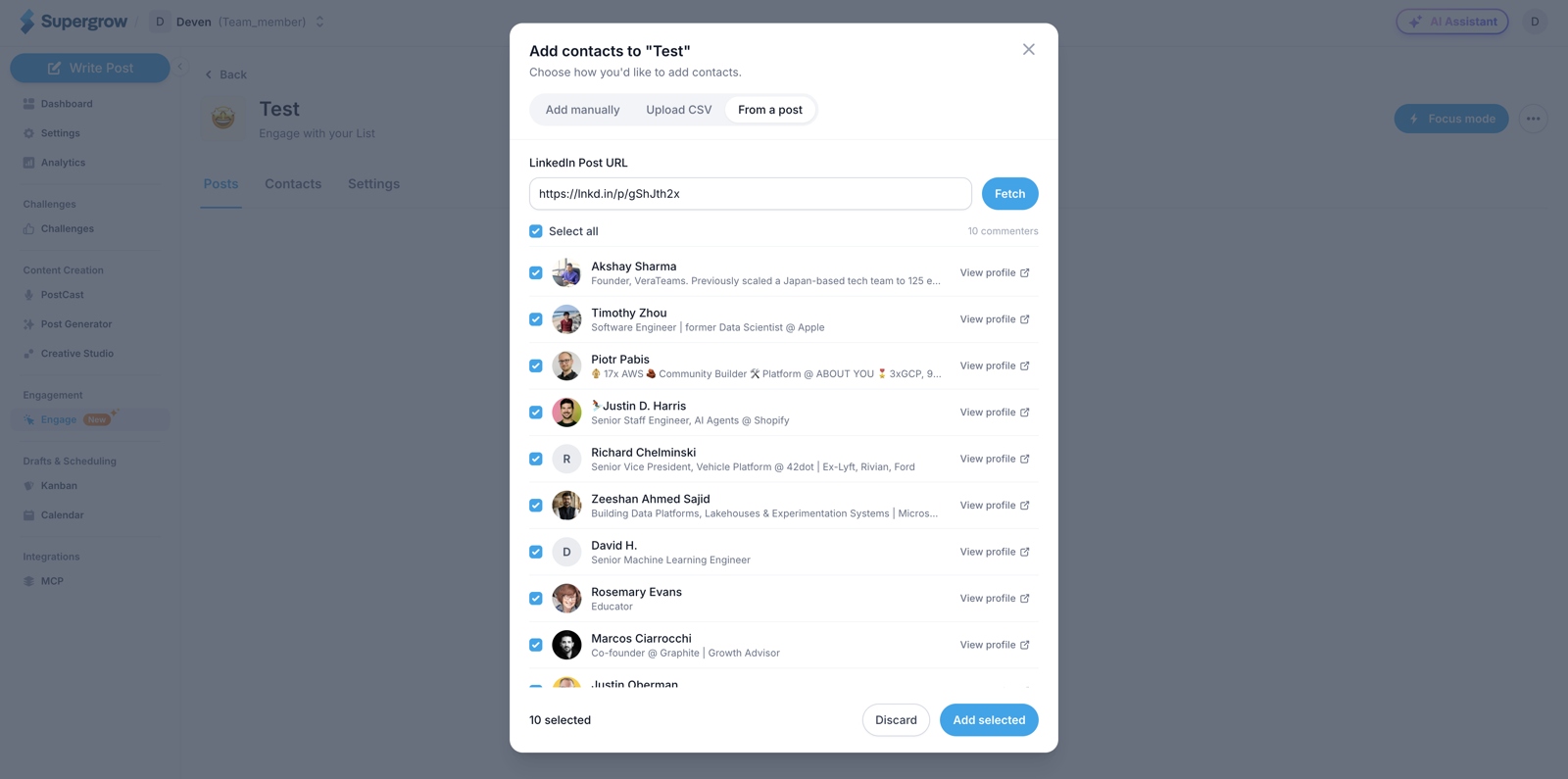
Paste any LinkedIn post link, including a short lnkd.in one, and you get the commenters back with their name, headline, and photo. Tick the ones worth talking to, open a profile first if you want to check, and add them in one go.
Engage works with company page accounts now too, and you choose which account you are commenting as.
Post Score gives you two scores
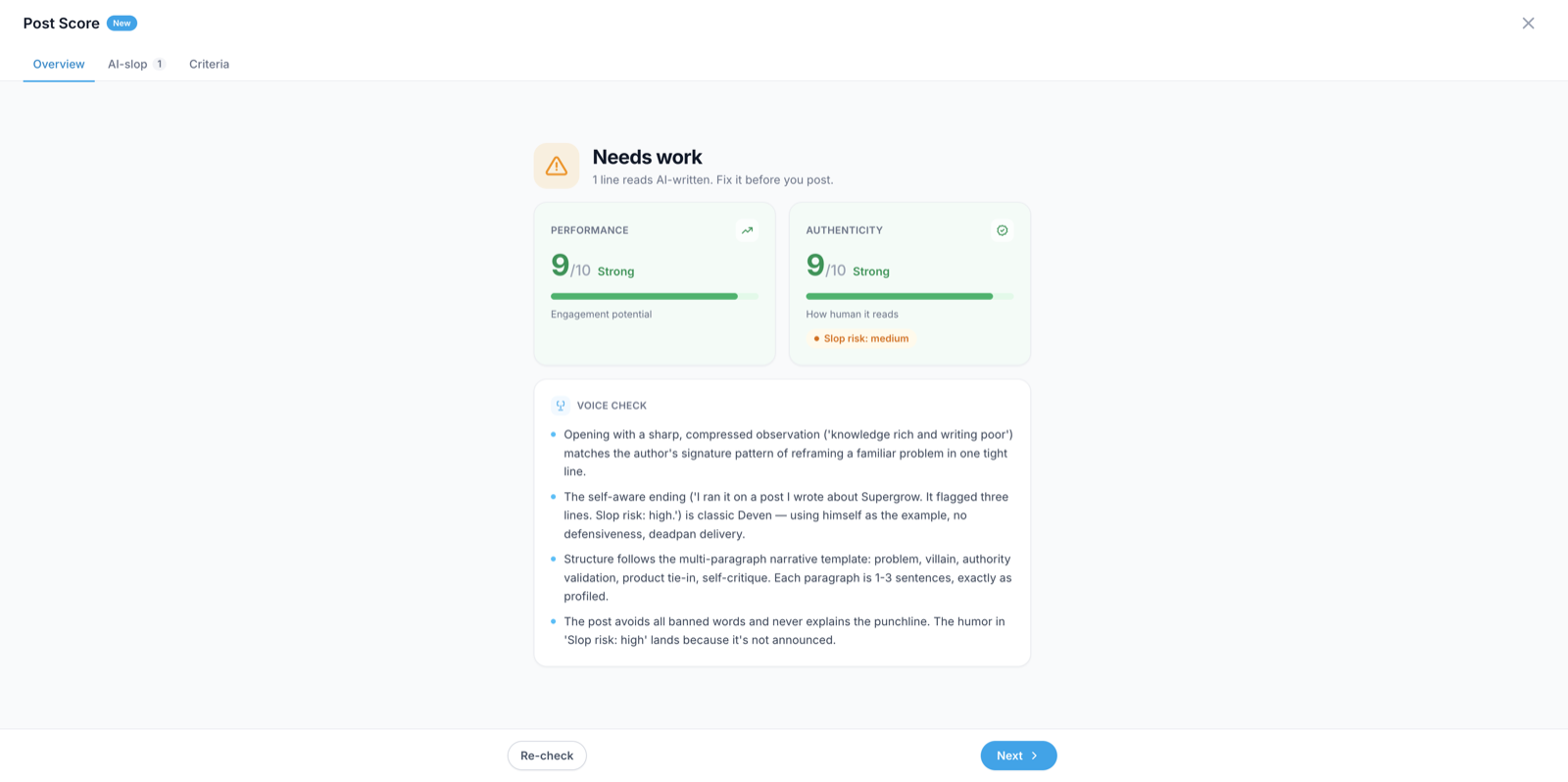
It opens with a verdict, Ready to post or Needs work, and a one-line reason. Then the two scores behind it.
Performance, out of 10. Engagement potential, from Hook Quality, Clarity and Coherency, Easy to read, Call-To-Action, and Originality.
Authenticity, out of 10. How human it reads, with a slop risk of low, medium or high.
Issues are ranked worst first, each with the line that caused it and a rewrite you can apply.
Your week ahead, on your dashboard
This week and next, side by side, with a slot count on each. Filled slots show the time they go out; empty ones are a plus button, so you can fill them without leaving the dashboard.
Define your own dimensions — market, expertise, segment — then filter and group by them across the roster, analytics, the calendar, and the Kanban board.
Tags you define
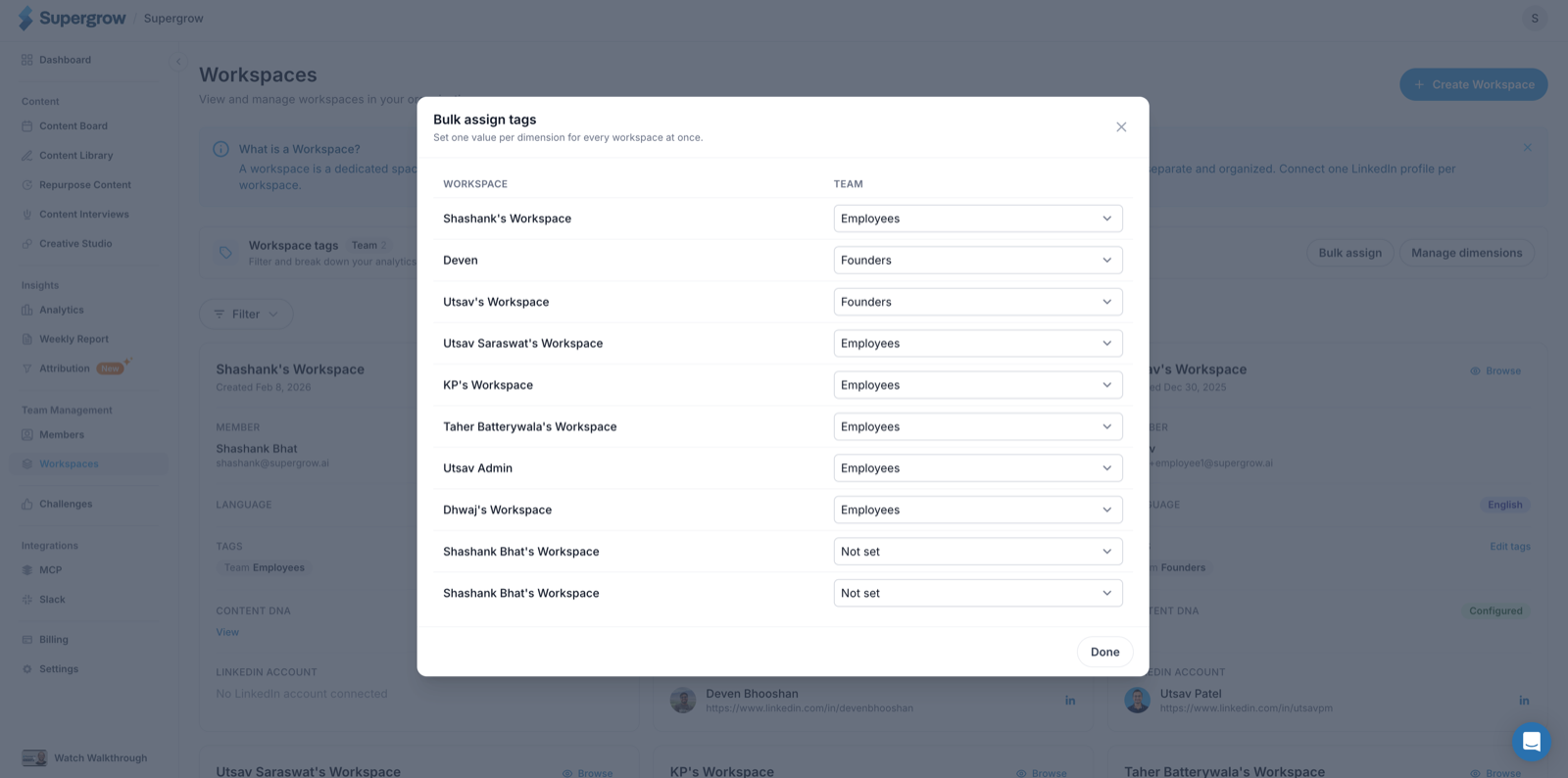
You define the dimensions. Team, market, expertise level, whatever your program is organised around. Then set a value on each workspace, or use bulk assign to do the whole roster in one pass instead of one person at a time.
Filter and group everywhere
Filter and group by those tags across the roster, team analytics, the calendar, and the Kanban board. Analytics takes more than one tag at a time.
Every filter sits in the URL, so "DACH, senior, last 30 days" is a link you can send someone.
Org analytics you can lead with, and drafts for several people at once
Advocacy adminsGhostwriters & agencies
Pick the metric that leads your dashboard, see what is queued for every account before the week starts, and hand one draft to a whole group.
You pick the headline metric
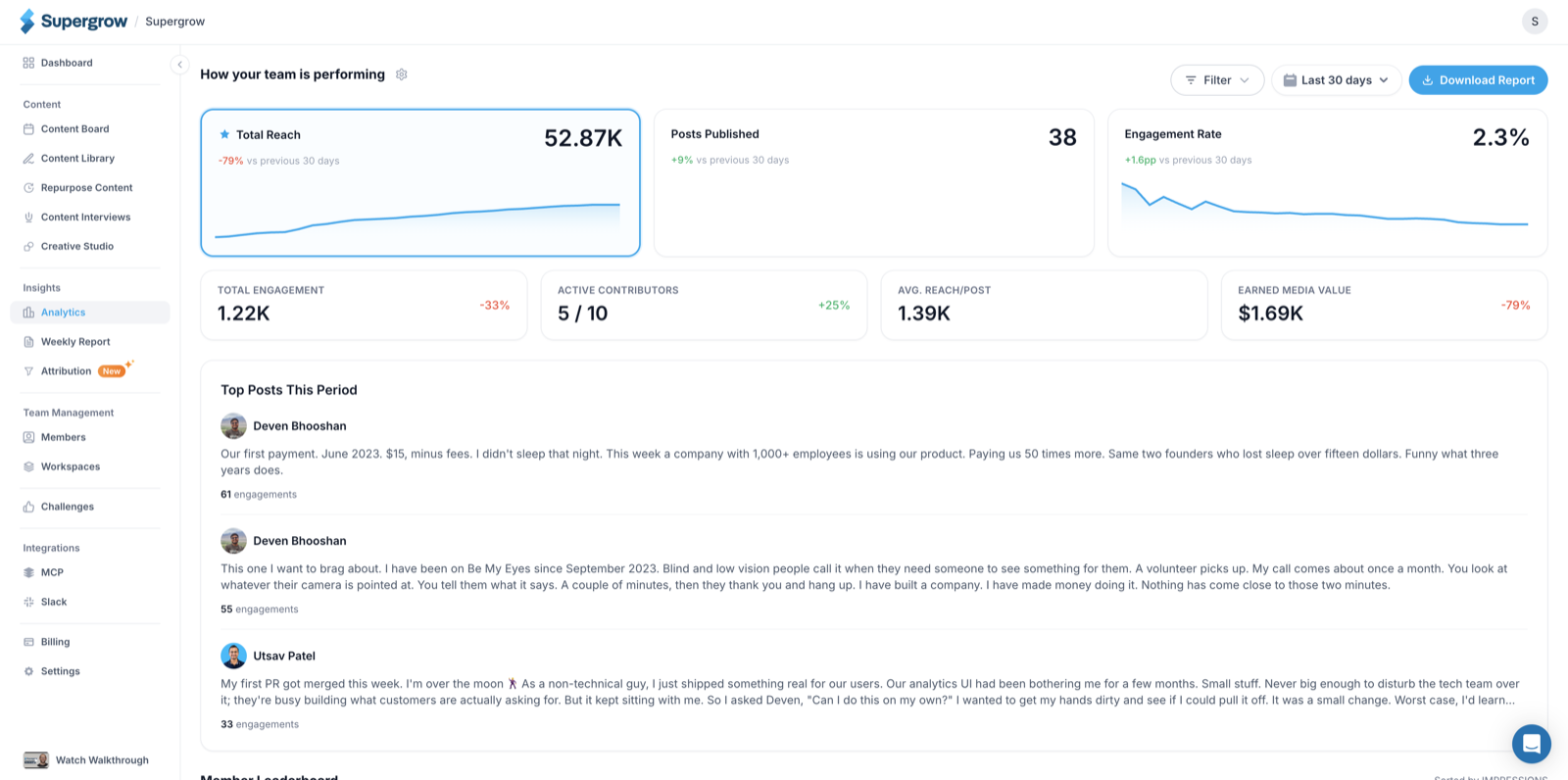
Earned Media Value used to lead the dashboard. Now you pick what leads instead. Your choice gets a star and heads the grid, and everything else drops to the compact row, EMV included.
See the week before it happens
Weekly reports tell you what already went out. Upcoming Schedule shows what is queued for each account, this week and next.
You can also see how "on track" is worked out. It has always been the number of time slots set for that member, but nobody could see that, so people showed up as behind for no clear reason. The card says it now, and you can edit slots right there.
Hand a draft to several people at once
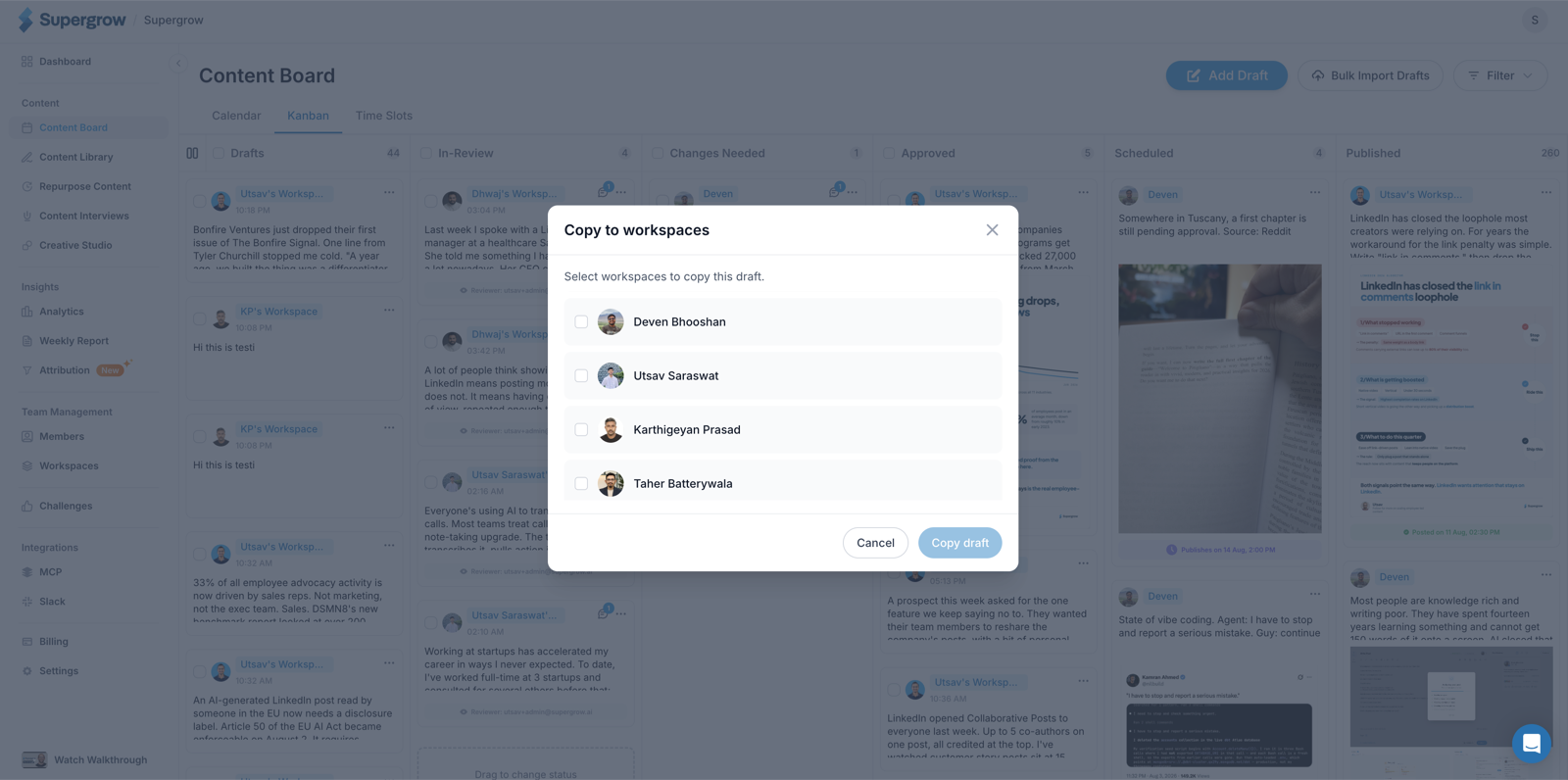
Copy a draft into several member workspaces in one go, or drag it around in the group-by-member Kanban view.
Share links survive scheduling
The public share link used to disappear once a post was scheduled, which is exactly when a client wants to see it. It stays now. A draft can also no longer skip the review step on its way out.