
Most of what we shipped since the August update is in Engage. Admins get analytics for every member and a way to regenerate Content DNA for the whole team, and Supergrow is now in Claude's connector directory.
Here it is, sorted by who it's for. Every change is also on the changelog, with the date it shipped.
1. For everyone
Engage
When we rebuilt Engage in August, you could comment and like. For anything else, you went back to LinkedIn.
All six reactions. The Like button is a reaction picker: Like, Celebrate, Support, Funny, Insightful and Love. It shows the reaction you already sent, and picking another one replaces it. In Focus mode, L still sends a quick like.
Reactions
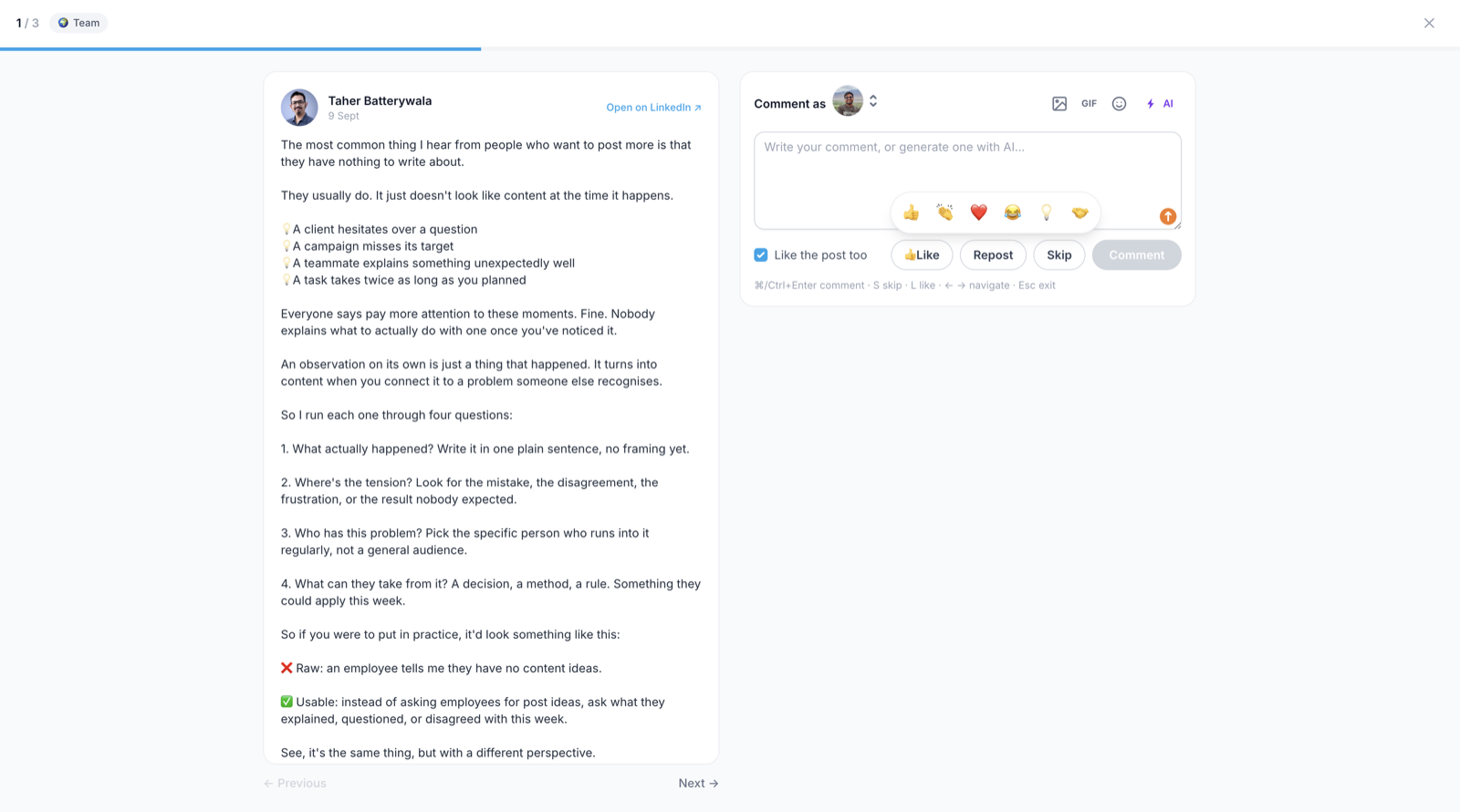
Repost, with or without your own line. Share a post as it is, or add a line of your own above it. You can repost as yourself or as a company page, and a post you already reposted is marked.
Repost
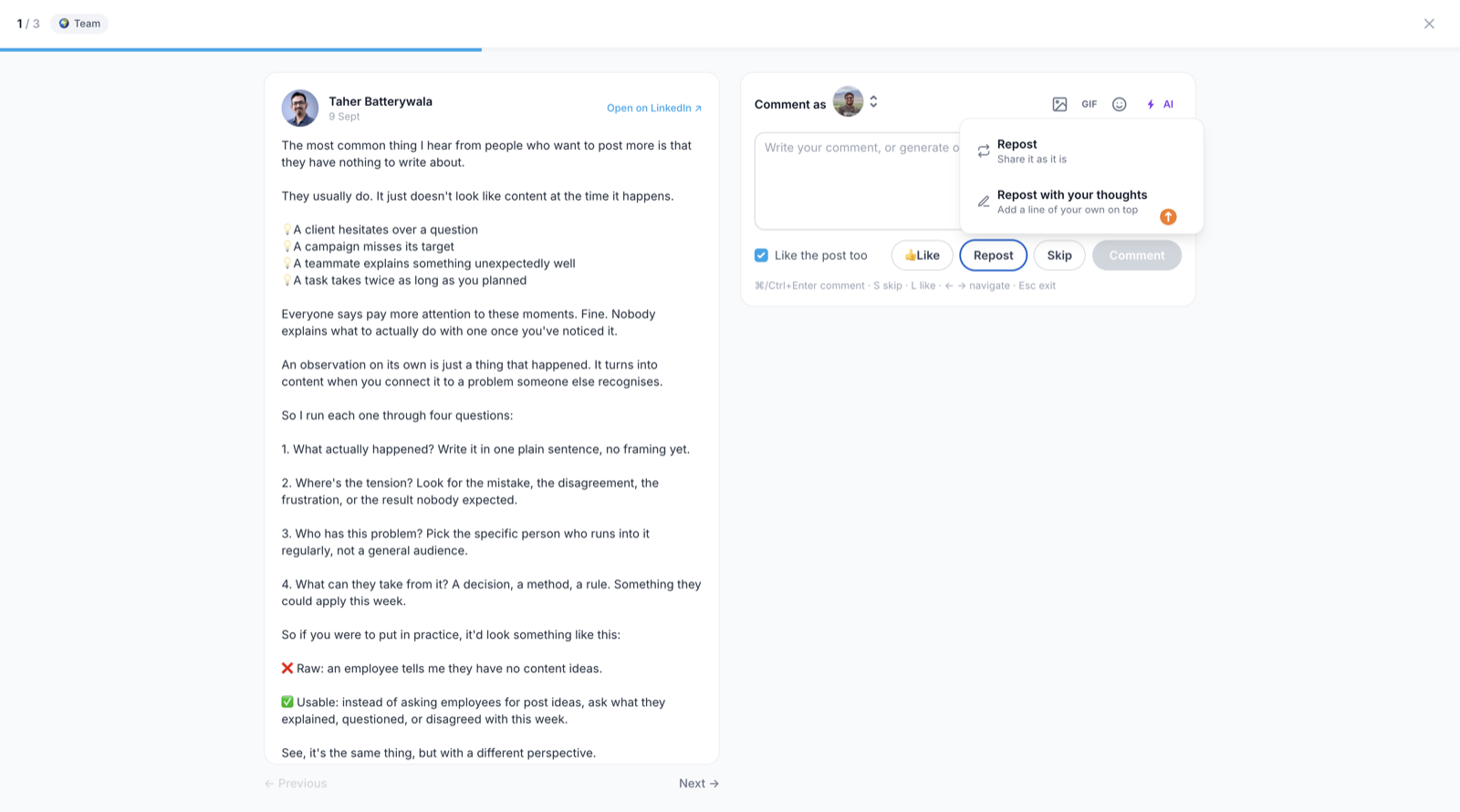
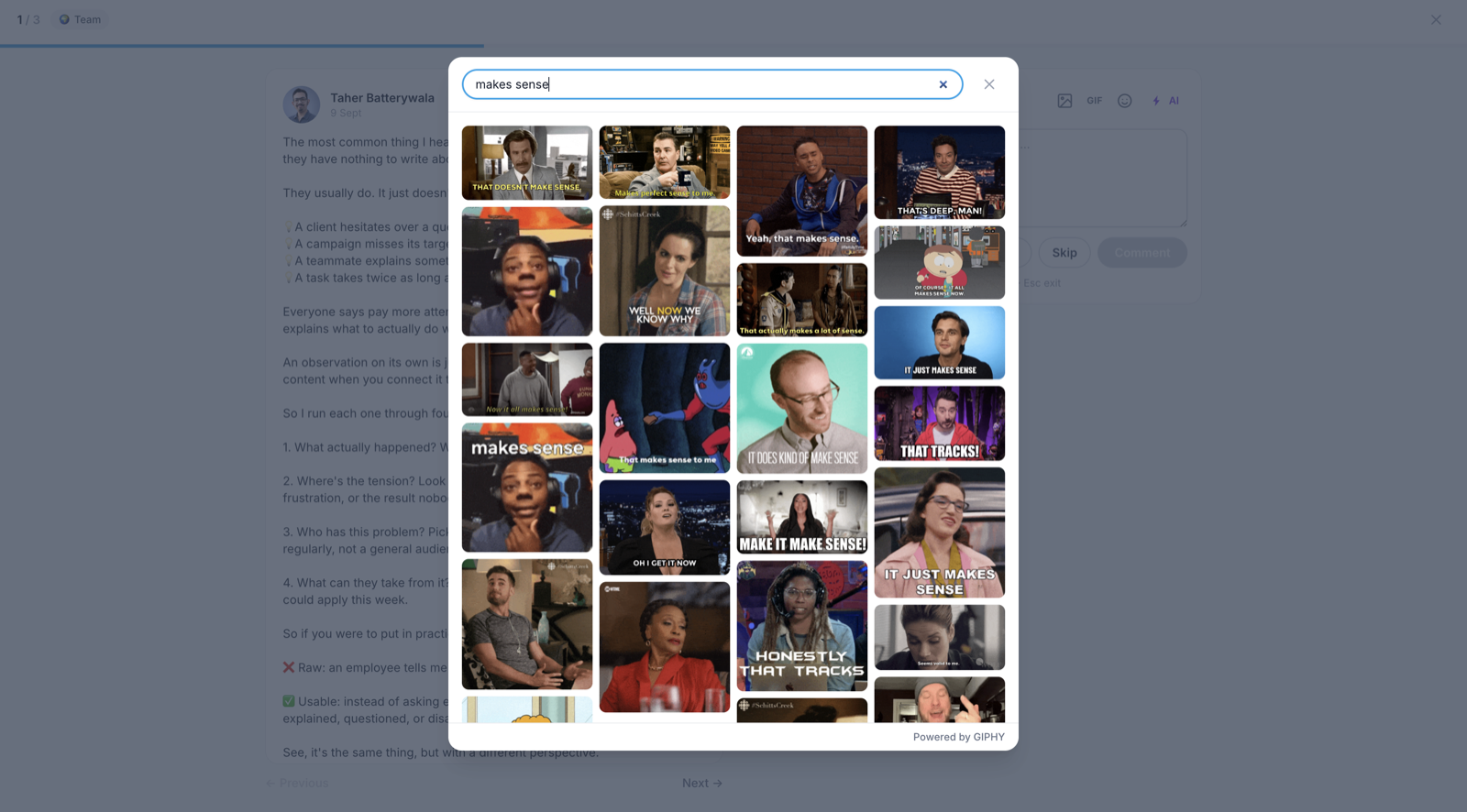
Comment with an image or a GIF. Attach one image from your media library, or search GIPHY from the comment box.
GIF comments
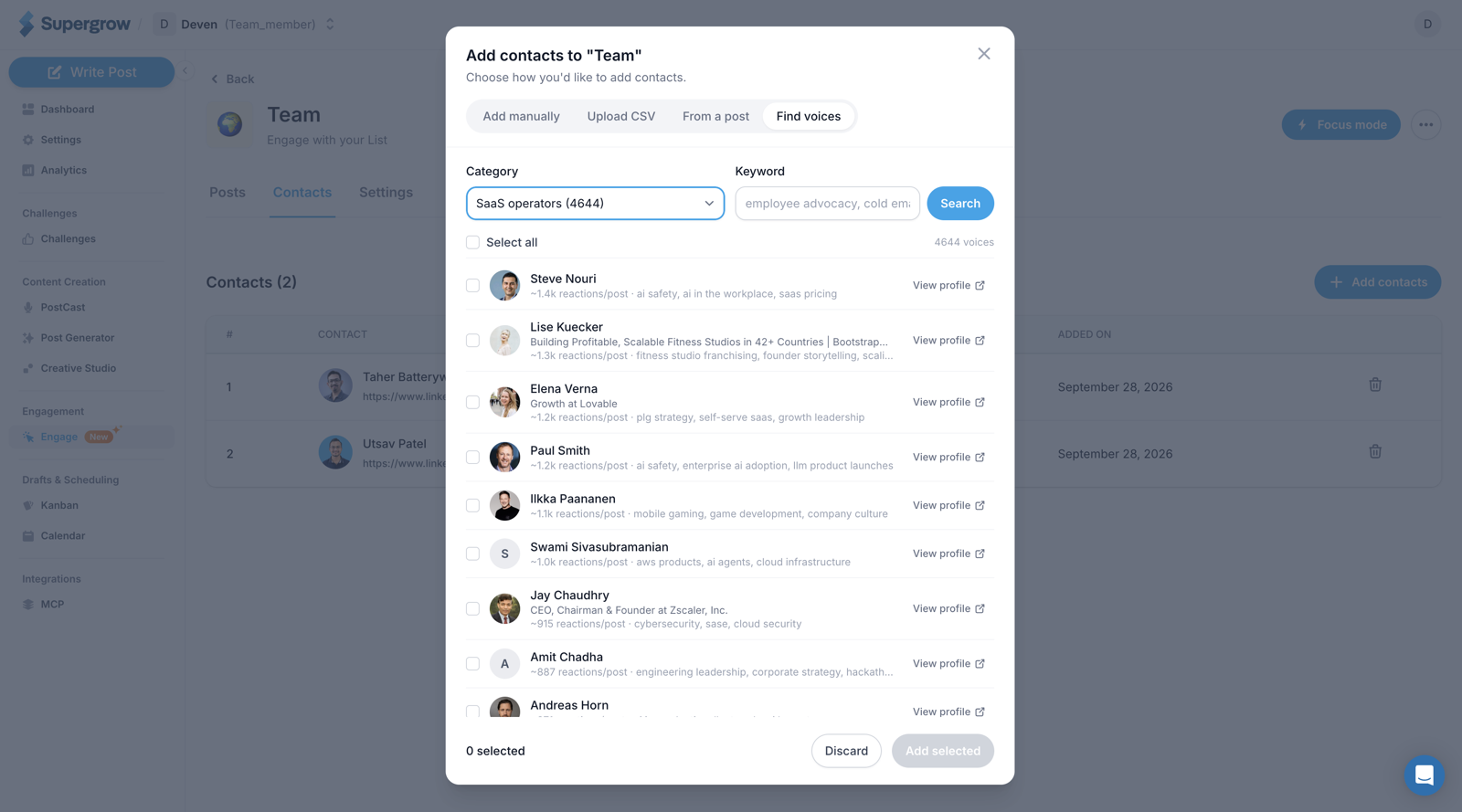
Find people to engage with. To build a list, you had to know who to add already. You typed profile URLs, uploaded a CSV, or picked commenters from a post. Now you can open Find voices when you add contacts, pick a category such as SaaS operators, and add a keyword if you want to narrow it down. You get LinkedIn authors whose posts reach that audience, most engaged first, with their headline, the topics they post about, and a link to their profile. Tick the ones you want and add them in one go.
Find voices
Already engaged, already listed. A post you engaged with from another list is labelled with that list's name, and so is a contact who is already in another list. Commenting twice on a post your workspace already commented on asks you to confirm first.
Focus mode
Two changes to Focus mode, the one-post-at-a-time view.
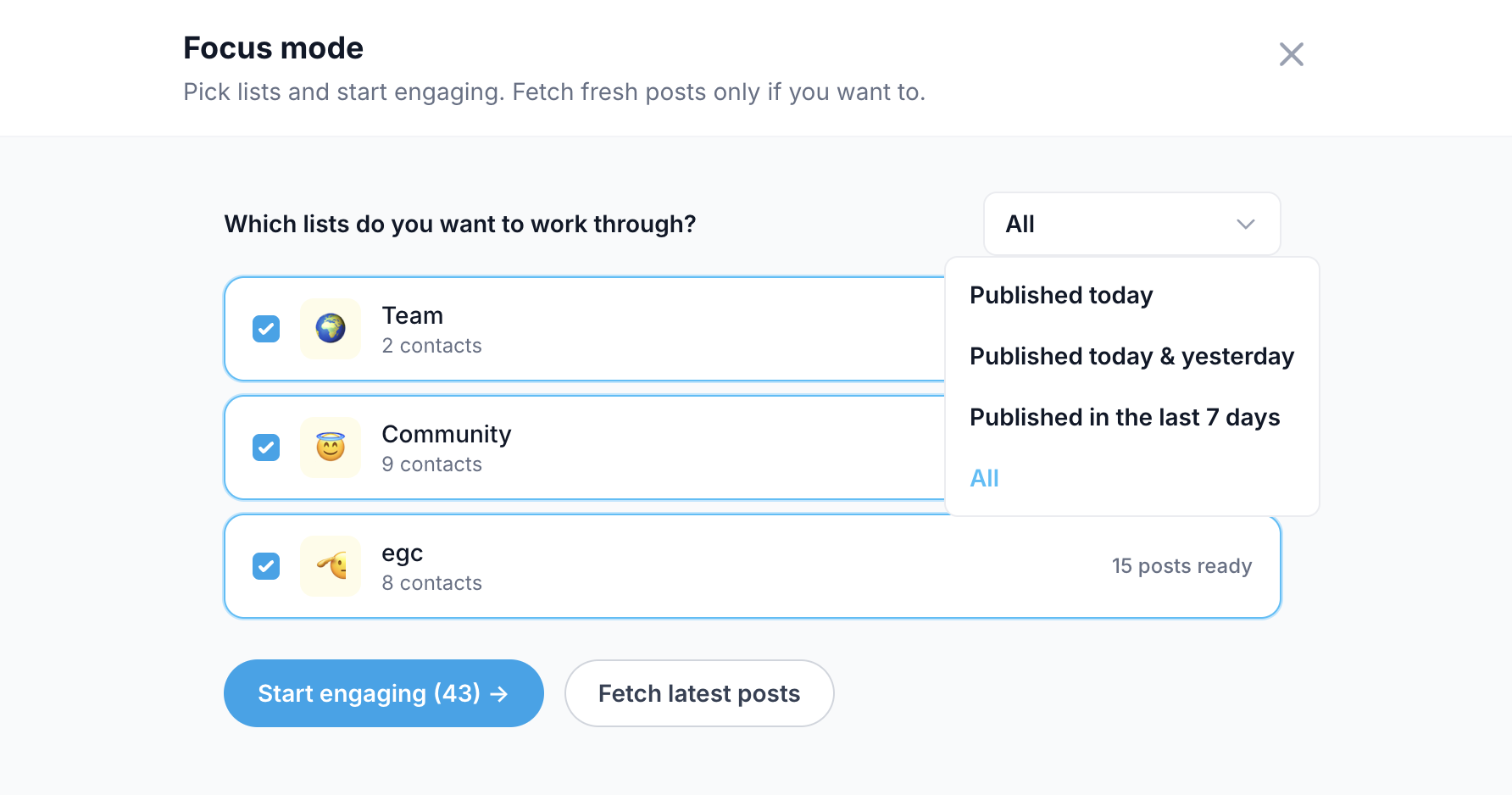
Skip old posts. Focus mode used to load every pending post in your lists, however old, so a list you hadn't opened in a week started with a week-old backlog. Now you can limit it to posts published today, today and yesterday, or in the last 7 days.
Focus mode filter
Your own prompts. The AI comment panel takes a prompt you write for that comment, or one of your saved prompts, instead of only the tone presets. You can create and edit saved prompts without leaving the panel.
Custom prompts
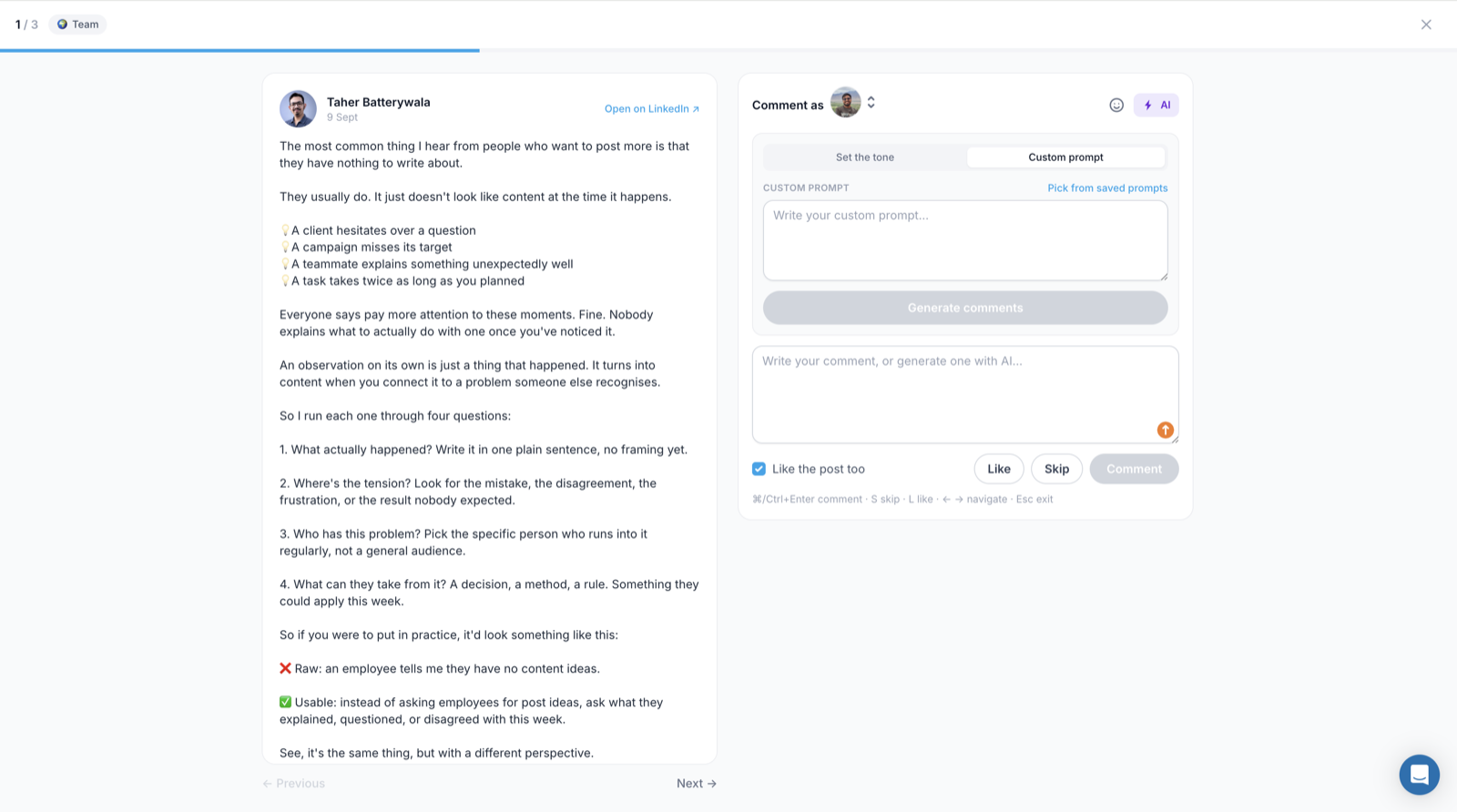
AI comments address the post's author
A drafted comment sometimes greeted you instead of the post's author, or credited the author with your experience. Comments now write as you, to the person who wrote the post, and use their name when it fits.
Our guide to LinkedIn comments covers what makes a comment worth reading.
PostCast asks a follow-up when an answer is thin
The PostCast interviewer used to spend three or four minutes on each question and then move on, whether or not you had said anything a post could use.
Now it checks every answer. If there's nothing to write about yet, it asks for an example, a number, or what happened next. If the answer is solid, it moves on. If you say you want to move on, it does, and it never asks more than two follow-ups on the same question.
Regenerate Posts used to return the same three posts with new wording. Each round now takes a different angle from your interview and knows what it has already written.
Undo a Post Score fix
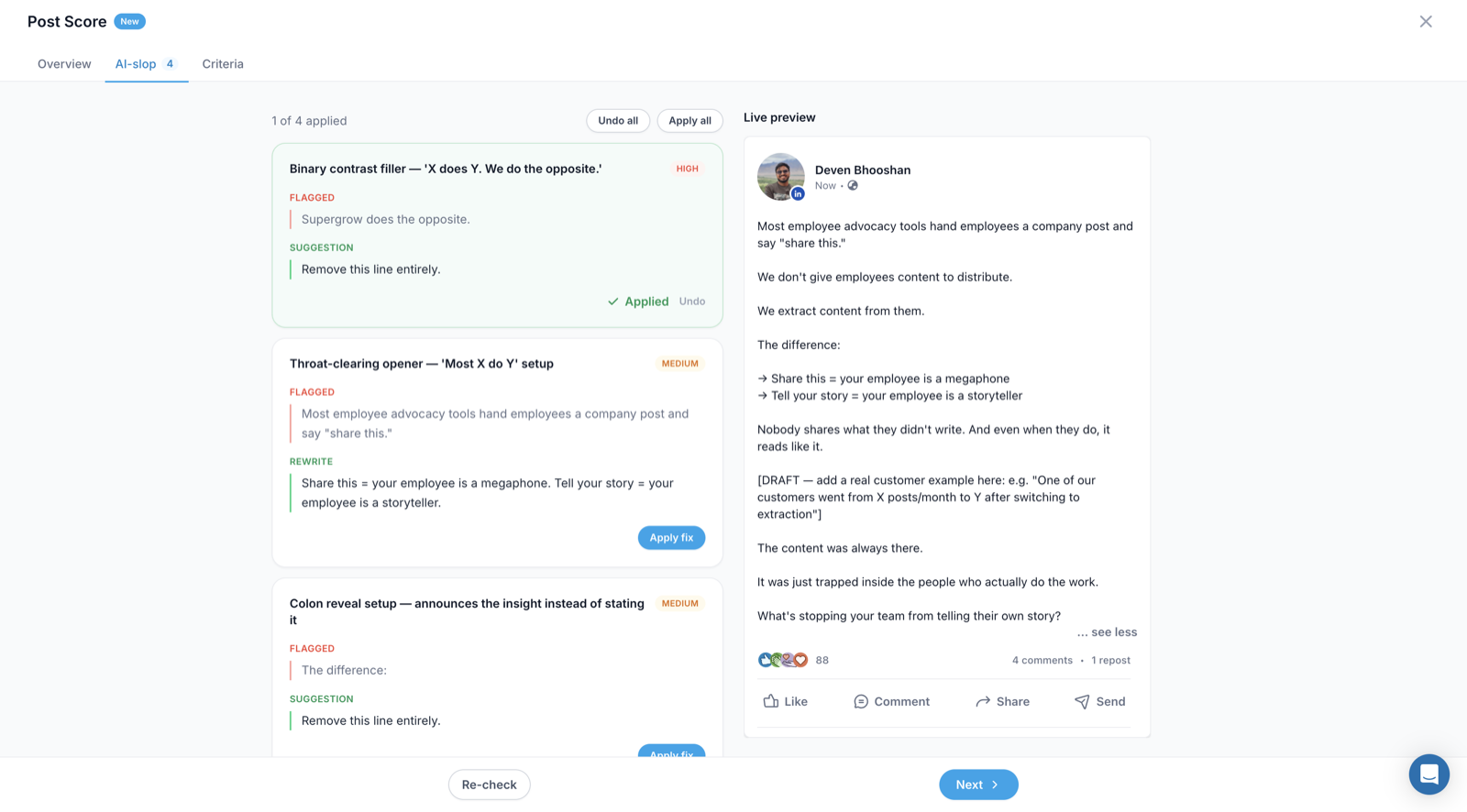
The Post Score we launched in August quotes the lines that read as AI-written and gives you a rewrite for each one. Now every fix you apply can be undone on its own, and Undo all puts the original post back, formatting and mentions included.
Undo in Post Score
Supergrow is in Claude's directory
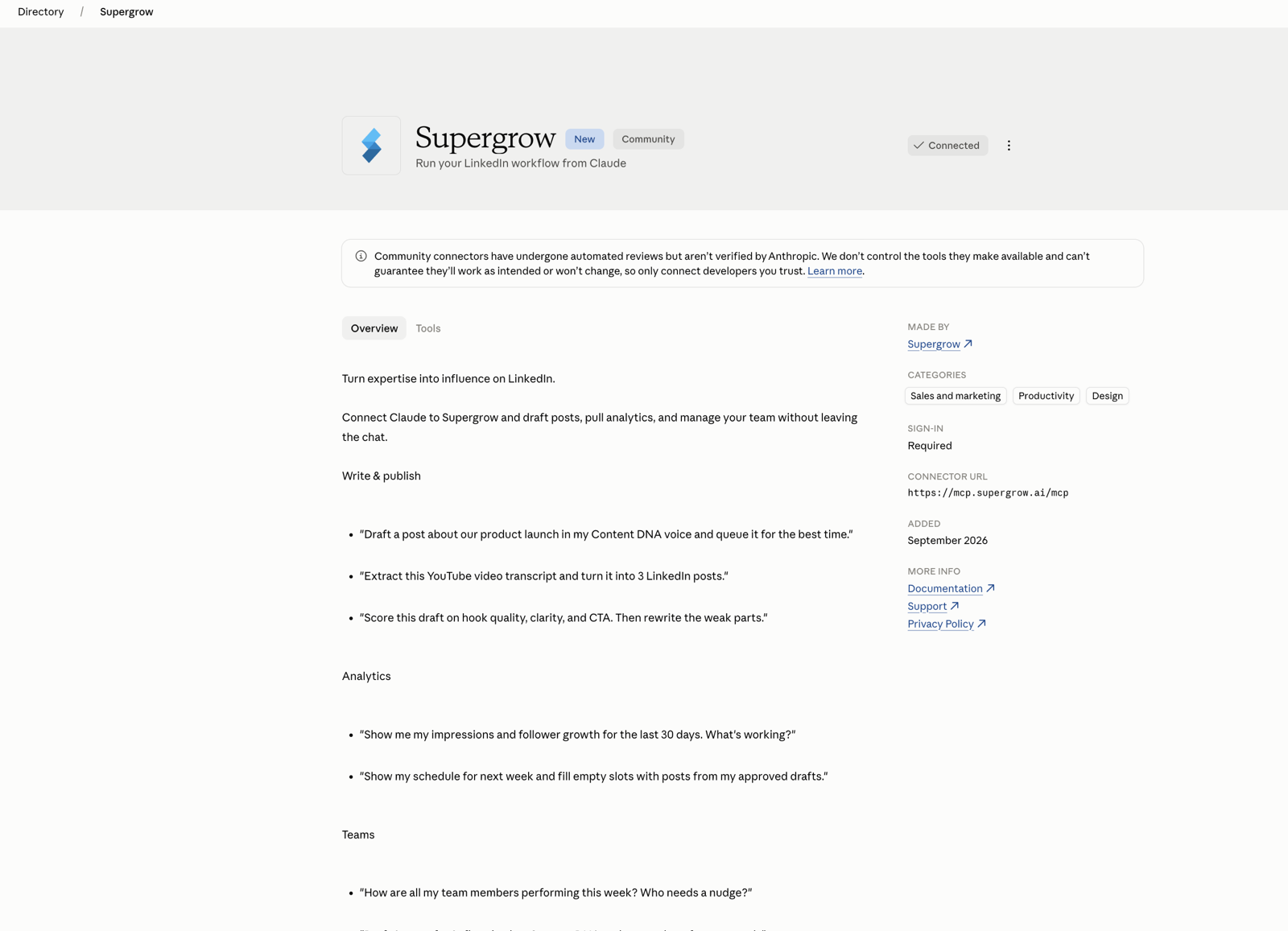
Connecting Claude or ChatGPT to Supergrow used to mean creating an API key and pasting a URL with the key in it. Now you sign in.
In Claude, open Supergrow in the connector directory and click Connect. You sign in to Supergrow and approve access on a page that shows which app is asking and what it will be able to do. ChatGPT connects the same way. Other tools, and any connection you already set up with a key, keep working.
Every Supergrow MCP tool is also labelled as read-only or as a change, and Claude uses the labels to decide what to check with you first. Deleting a draft and publishing to LinkedIn are labelled as changes.
Claude directory
Worth Your Take is back
In late August, one weekly run dropped the Worth Your Take section from almost every weekly report. It's back, and the reports that went out without it have been refilled. It also no longer suggests job ads or careers pages. When no article is good enough, the section is left out rather than filled with the first result.
2. For admins running employee advocacy
Every member's numbers in one place
Adding up followers gained, reactions, comments and reposts across a team used to mean opening each workspace in turn.
The Overview tab of team analytics now shows all of them across every member, next to impressions, engagement and Earned Media Value. The member leaderboard lists everyone, not just the top ten, with an organization total and an average per member. The date range and tag filters apply to all of it.
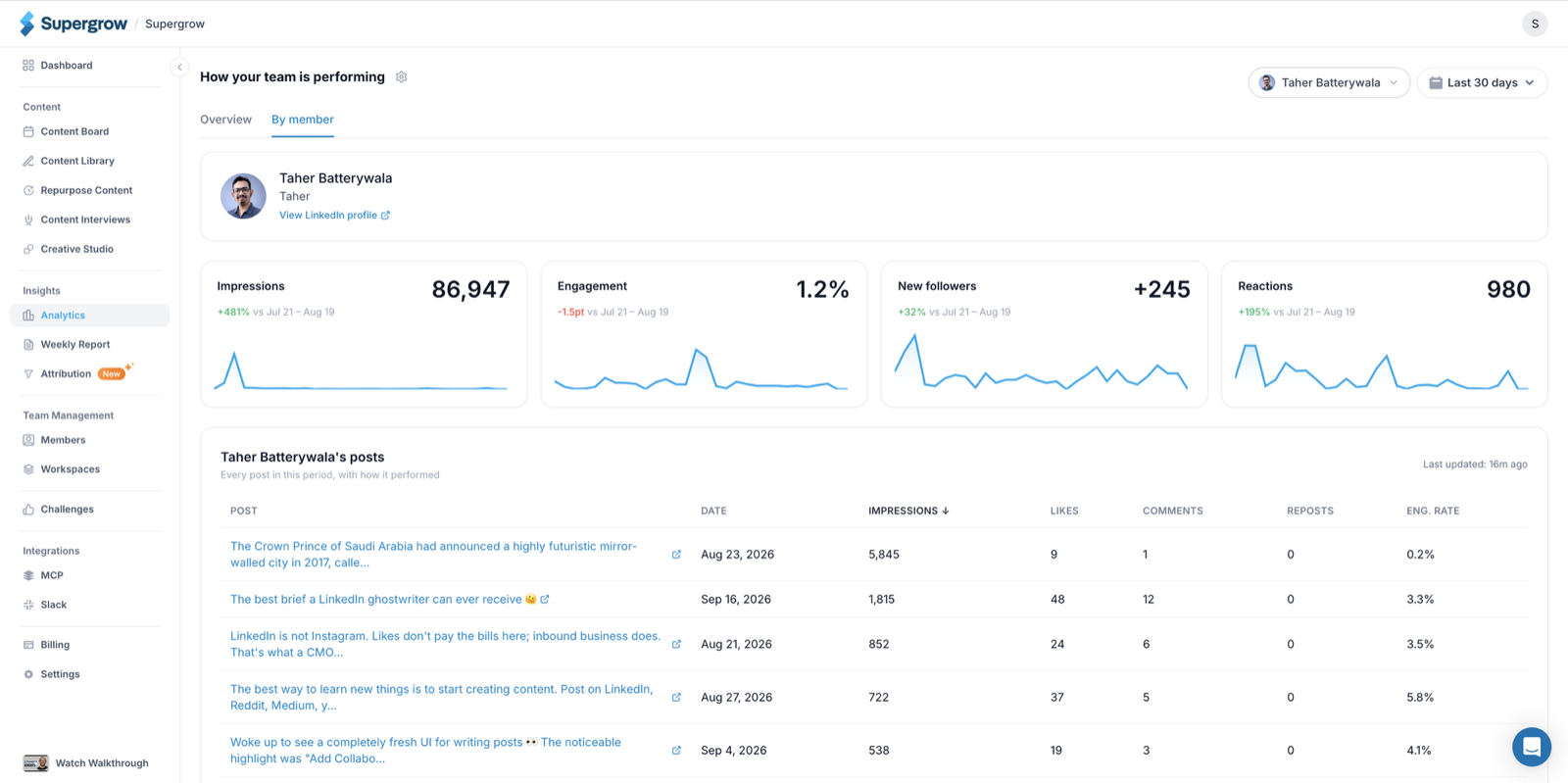
The new By member tab shows one person at a time: their trends, and every post they published in the period with how it did. The link carries the member, so you can send someone a link to one person's numbers.
By member
Analytics labels say what they count
A customer compared the cards at the top of analytics with the post table below them and found every number was different. They measure different things. The cards count everything that happened on the account during the date range, including activity on older posts, and the table adds up lifetime totals for posts published in the range. The page didn't say so.
The table now says what it counts. "Likes" is now "Reactions", because it always counted every reaction type. Engagement rate uses the same formula as the cards. Each row shows when its numbers were last updated. We also removed the "vs. previous period" badges, because they weren't comparing against the previous period. They'll come back when they do.
Our guide to employee advocacy metrics covers which of these to report to leadership.
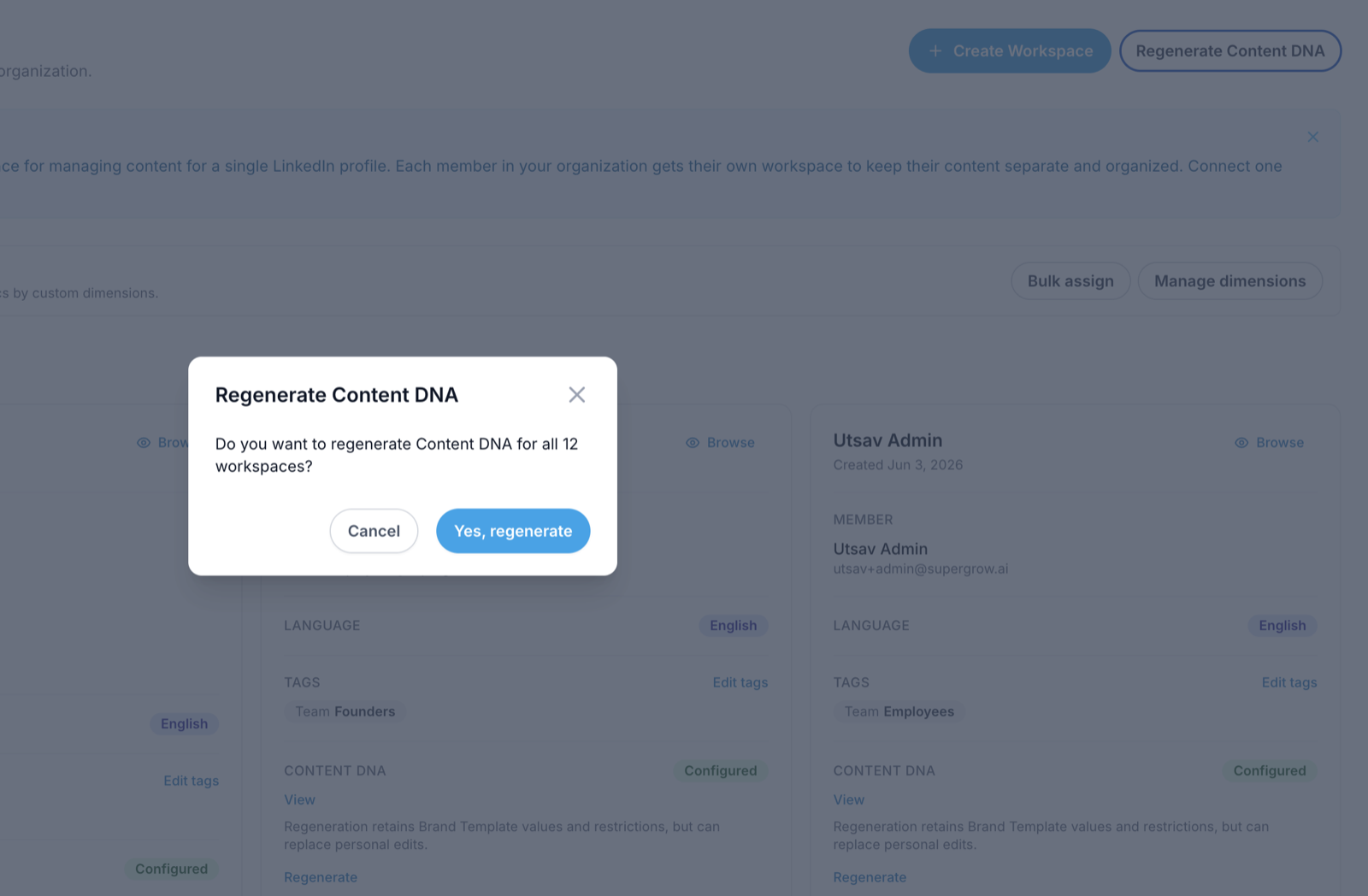
Regenerate Content DNA for the whole team
You can now regenerate Content DNA for every workspace at once from the Workspaces page, and a panel shows progress as each one finishes. Any workspace that was skipped or failed is listed with the reason. Each workspace card also has its own Regenerate link, for one person at a time.
Regeneration reads the member's recent LinkedIn posts. If LinkedIn can't return them, it uses the posts they published through Supergrow, as long as there are at least five. It keeps what your Brand Template sets, but it can replace edits a member made to their own Content DNA, so tell people before you run it.
Regenerate Content DNA
Admins can join challenges
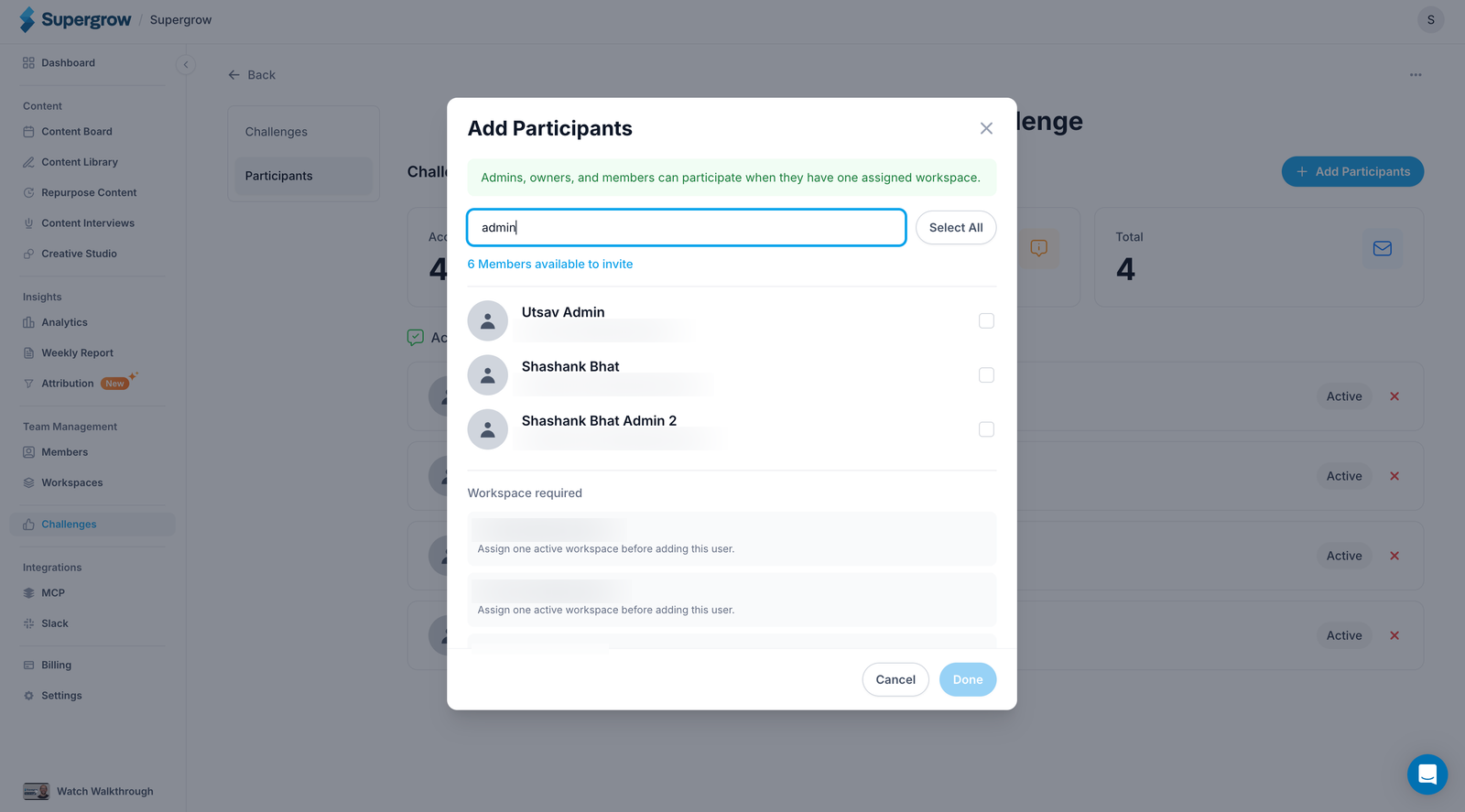
Admins and owners with a workspace of their own can take part in a challenge. When you create one, you're asked whether to join it. Admins also show up in the participant list, so you can invite each other.
Pending invitations appear on the organization dashboard with Accept and Reject buttons, and reminder emails open the right workspace.
Challenge participants
Employee advocacy gamification covers how to set up a challenge.
Invite a removed member back
Removing a member who had accepted their invitation used to be final. Inviting the same email again failed, and nothing in the app could clear it. Now it works.
3. For ghostwriters and agency owners
Feedback on the whole post
Leaving feedback on a post used to require highlighting some text first, so "the hook is weak" got pinned to whatever line the reviewer selected. Now a reviewer can leave feedback with nothing selected, and it applies to the whole post. Highlighting still works for a comment about one line.
This works on content cards and on shared preview links.
Your client's Content DNA stays theirs
A content manager given access to a client's workspace was shown the "build your Content DNA" screen. Answering it rebuilt the client's Content DNA from the manager's own LinkedIn profile, so the client's posts were written in the manager's voice. Content managers now skip that screen and go straight to the workspace.
Smaller fixes
- A post can carry up to 20 images, which is LinkedIn's limit, and tells you when you go over.
- Post images in Focus mode are sharp and shown at their own size.
- Repurpose content checks a YouTube link is a real video before accepting it.
- The Last 6 Months analytics range starts on the right day at the end of a month.
- A post that published after a failed attempt no longer shows an error banner.
What we're working on next
The plan from August's update still stands: better content, better collaboration, and less to learn.